How to connect the Relume Publish MCP
By the end of this doc, you'll be able to:
- Understand what the Relume Publish MCP lets your AI tool do
- Connect it to Claude, ChatGPT, Claude Code, Codex or Cursor
- Sign in with your Relume account and try your first prompts
- Rebuild your published site in Webflow, using Get started with the Relume Publish to Webflow skill
- Fix the most common connection problems
Overview
The Relume Publish MCP lets you build and edit your Relume Publish sites from Claude, ChatGPT and other AI tools. It's available on paid Relume plans only, so it won't work on the Free plan or during a free trial. Once it's connected, you can ask your AI tool to:
Before You Begin
Before getting started, make sure you have:
- A paid Relume plan with access to Relume Publish. Free plans and free trials don't include the MCP.
- One of these: Claude (on the web at claude.ai), ChatGPT, Claude Code, Codex or Cursor
- The MCP URL, which you'll paste in during setup:
https://relume-publish-mcp.relume.io/mcp
Connect your AI tool
Claude
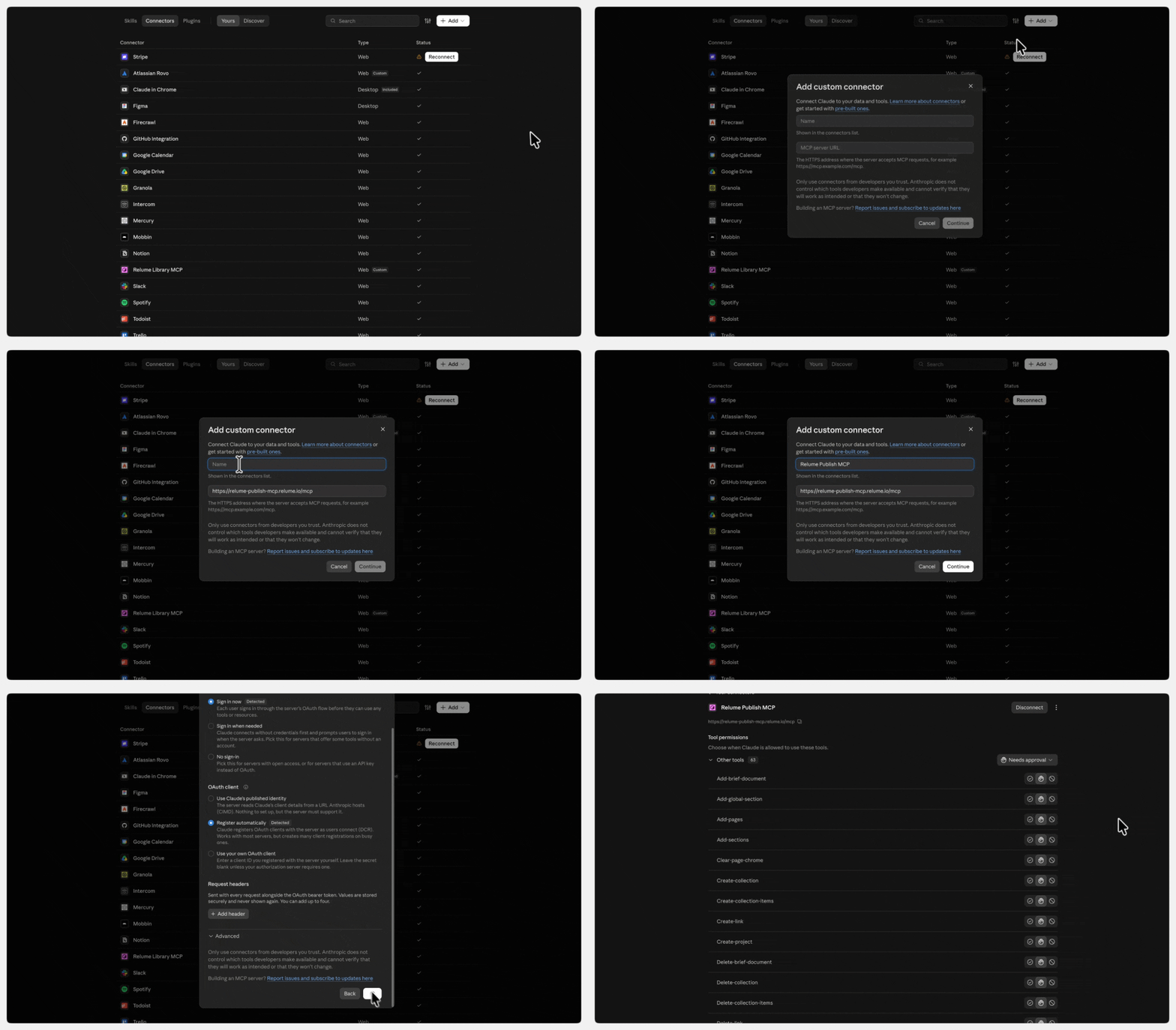
This takes about 2 minutes. Connectors you add here work on claude.ai, in the Claude desktop app and in Claude Code, as long as you're signed in with the same Claude account.
- Go to Customize, then Connectors.
- Click Add custom connector.
- Enter Relume Publish as the name.
- Paste the MCP URL into the URL field.
- Click Add.
- Click Connect.
- Sign in to your Relume account in the window that opens.
You're done when the connector shows Connected.
ChatGPT
- Go to Settings, then Security and login.
- Turn on Developer mode.
- Go to the Plugins page.
- Click Add, then Create MCP App.
- Enter Relume Publish as the name.
- Under Connection, paste the MCP URL into the Server URL field.
- Set Authentication to OAuth.
- Tick I understand and want to continue.
- Click Create.
- Sign in to your Relume account in the window that opens.
To use it, open a chat, open the tools menu and search for Relume Publish.
Claude Code with an API key
If you sign in to Claude Code with an Anthropic API key instead of a Claude account, the connector from the Claude steps won't carry over. Add it from your terminal instead:
- Run
claude mcp add --transport http relume-publish https://relume-publish-mcp.relume.io/mcpin your terminal. - Run
claudeto start Claude Code. - Type
/mcp. - Select relume-publish.
- Choose Authenticate.
- Sign in to your Relume account in the browser window that opens.
Tip: Add--scope userto the command to make Relume Publish available in every project, not only the folder you're in. To remove it later, runclaude mcp remove relume-publish.
Codex
- In the ChatGPT desktop app, open Settings, then select MCP servers.
- Select Add server.
- Enter Relume Publish as the name.
- Choose Streamable HTTP.
- Paste the MCP URL into the URL field.
- Save the server, then select Restart.
- Select Authenticate next to Relume Publish.
- Sign in to your Relume account in the browser window that opens.
Using the Codex CLI instead? Run codex mcp add relume-publish --url https://relume-publish-mcp.relume.io/mcp, then codex mcp login relume-publish.
Cursor and other tools
Most tools that support remote MCP servers work the same way: add a server named relume-publish with the MCP URL, then sign in when prompted. In Cursor, add this to your mcp.json file:
{"mcpServers":{"relume-publish":{"url":"https://relume-publish-mcp.relume.io/mcp"}}}
Try it
Once you're connected, start with something small so you can see how it works:
- "Show me my Relume account and the projects I can edit."
- "Create a new Relume Publish project for a local bakery, with a home page and a menu page."
- "In my project, add a testimonials section to the home page and write three short testimonials."
- "Undo the last change."
When you're ready to take a published site into Webflow, follow Get started with the Relume Publish to Webflow skill.
Troubleshooting
It won't connect
Check the URL matches https://relume-publish-mcp.relume.io/mcp exactly, with nothing added at the end. If it still fails, remove the connector and add it again.
It connects but can't open my project
The MCP uses your account's access, so it can only edit projects you can edit in Relume. Make sure you're signed in with the account that owns the project, or ask the owner to invite you.
I can't find Connectors in Claude, or Create MCP App in ChatGPT
Update the app, or use the web version in your browser. In ChatGPT, Create MCP App only appears once Developer mode is on. On a Business, Enterprise or Edu workspace, an admin may need to allow it first.
Tips & Best Practices
Tip: Give the AI your project's link or ID when you ask it to work on an existing site. It's faster than having it search your projects.
Tip: Ask it to check with you after the first section or page. It's much quicker to correct one section than a whole site.
Tip: If a change isn't what you wanted, ask it to undo. Every change it makes is saved as a snapshot you can roll back to.
Need Support?
Join Our Community
Learn from fellow Lumers or showcase your work with our community of 10k+ members.
Get Support
We've got your back. Get your questions answered.
We typically reply in 24 hours or less.

