Switch Between Relume Products
Summarize with AI
Locate the product switcher in the top-left corner of the Relume dashboard, then move between Publish for hosted sites, Export for Figma, Webflow, or React, and Library for Webflow components.
By the end of this doc, you'll be able to:
- Find the product switcher on your Relume dashboard.
- Switch between Publish, Export, and Library.
Relume's products — Publish, Export, Studio, and MCP — sit side by side in the navigation bar at the top of your dashboard. You can move between them at any time.
How to Switch Between Products
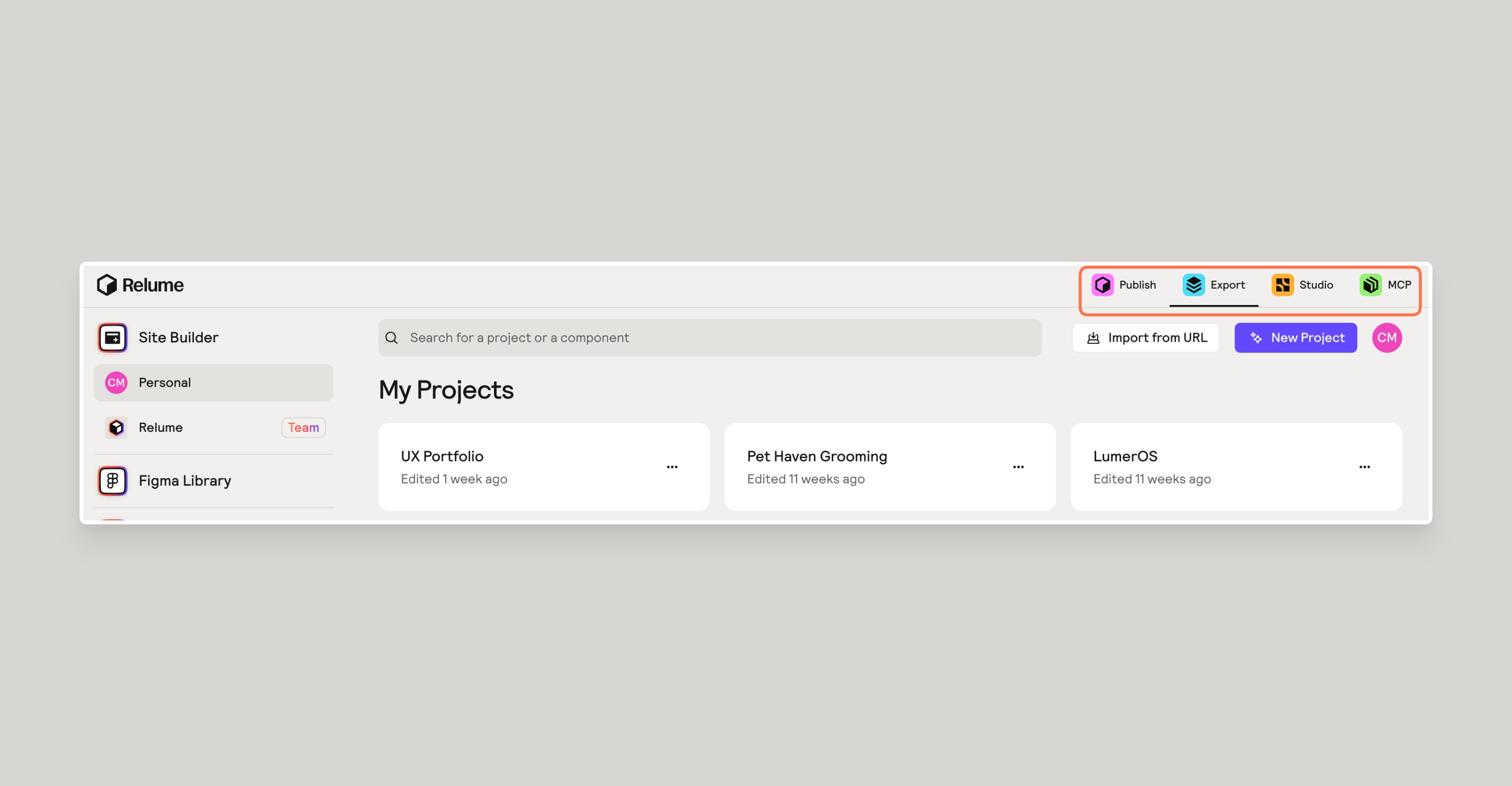
- Find the navigation bar at the top of your Relume dashboard. The product you're in is underlined.
- Click the product you want to switch to:
- Publish — take your project live and grow it
- Export — build to export to Figma, Webflow, or React
- Studio — create on-brand imagery
- MCP — connect Relume to AI tools such as Claude and ChatGPT
- Check that your dashboard now shows the product you selected.
Set Your Default Landing Location
- Go to Account Settings.
- Select Account in the left sidebar.
- Scroll down to Default landing location.
- Click the dropdown, which shows your current default (for example, Publish).
- Select the product you want from the list.
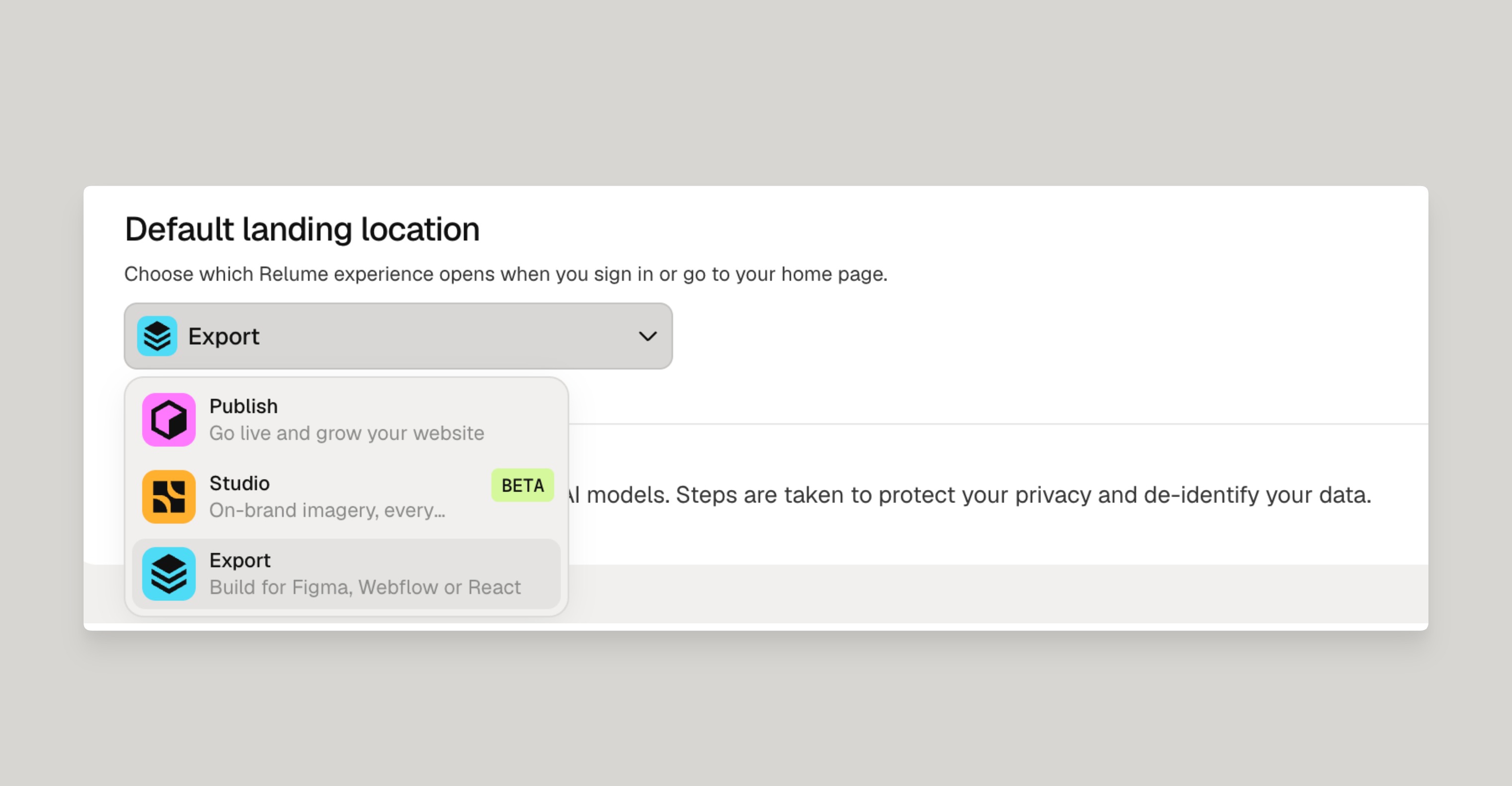
Your default landing location only controls where you start out. You can still switch to any product from the navigation bar at any time.
Was this helpful?
Need Support?
Join Our Community
Learn from fellow Lumers or showcase your work with our community of 10k+ members.
Get Support
We've got your back. Get your questions answered.
We typically reply in 24 hours or less.

