How to Design Your CMS Pages and Layouts
Summarize with AI
Design how your CMS content looks: edit the template page every item shares, swap a CMS section's layout, hide parts of an item, then preview and publish your design changes.
By the end of this doc, you'll be able to:
- Design the template page every item uses
- Change a CMS section's layout
- Hide parts of an item, such as an image or button
- Preview and publish design changes
Before You Begin
- A collection connected to a section.
How CMS Design Works
CMS content appears in two places:
- Template pages — one page per item, such as each blog post, all sharing one layout
- CMS sections — lists on other pages, such as a blog list on your homepage
Every item shares one design, so a change to one applies to all. Remove a button from one item, and it's removed from every item.
Design Your Template Page
Every collection gets a template page automatically.
- In the CMS, select a collection.
- Click the "Used in" line under its name.
- Select the template page.
It opens on the canvas, showing one of your items.
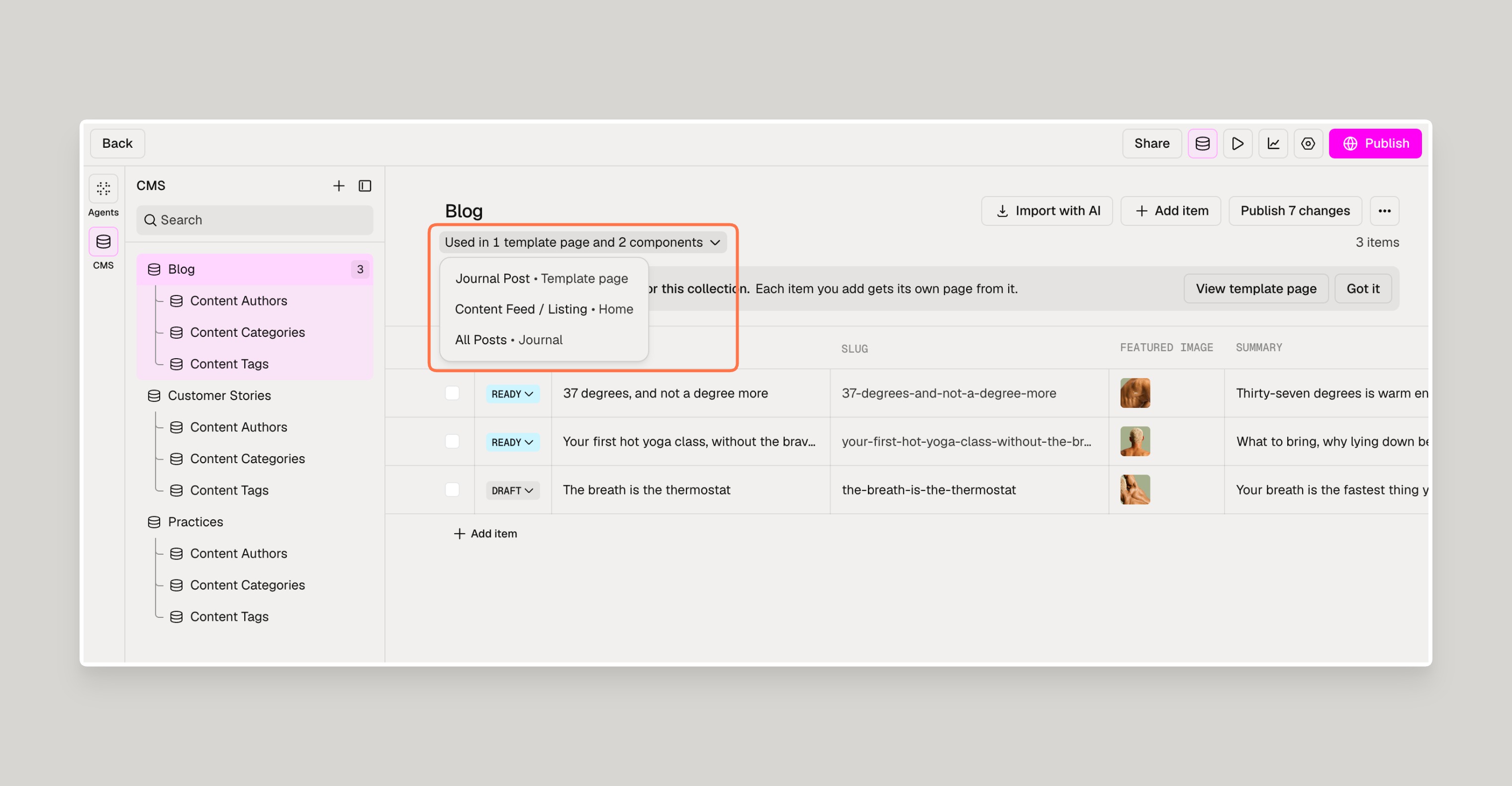
A template page has two kinds of sections:
- Sections connected to the collection show the current item's content.
- Regular sections work like any other page. Text and images you add here appear on every item's page.
Change a CMS Section's Layout
This works on any page, including template pages.
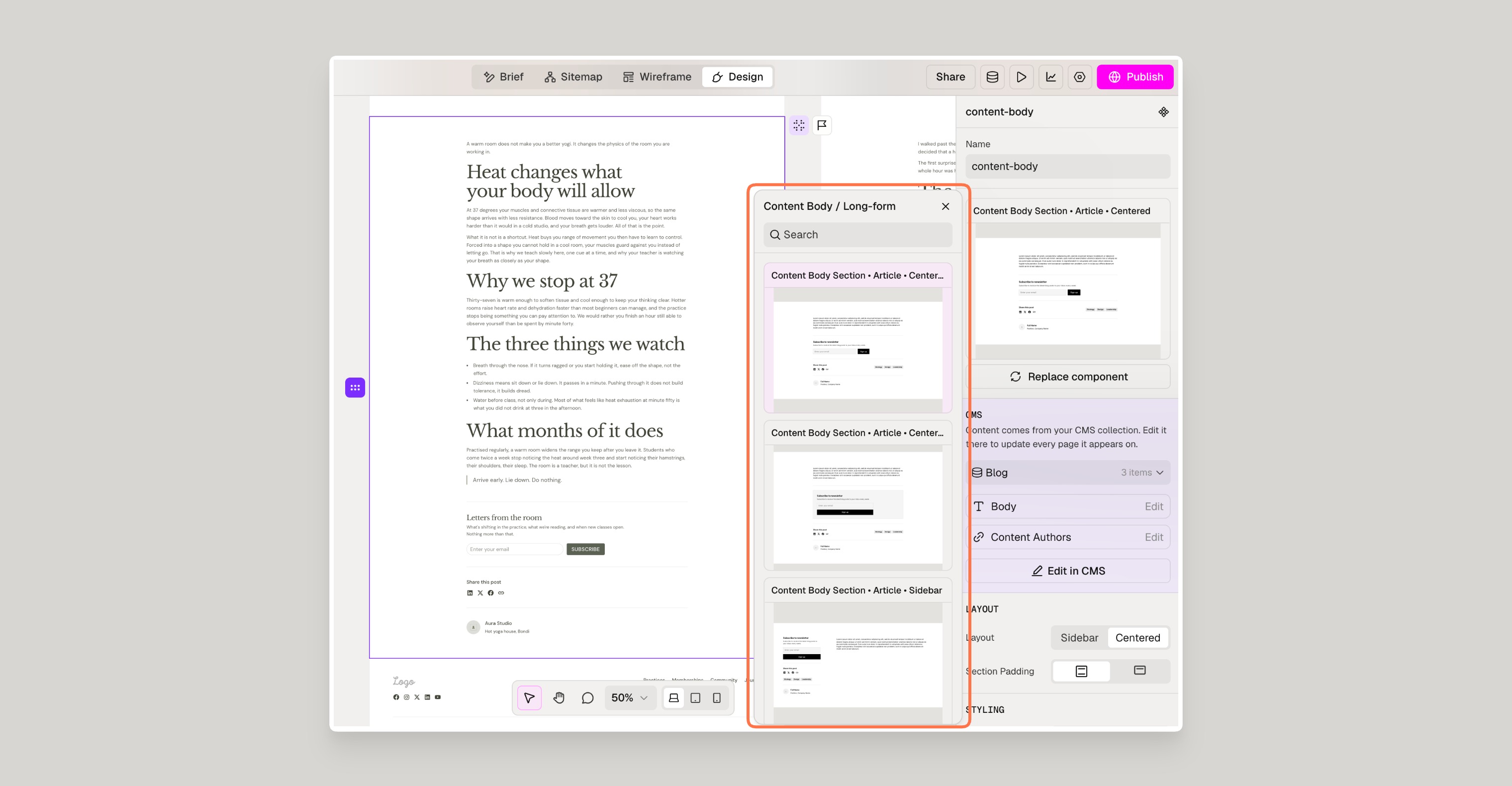
- Select a CMS section on the canvas.
- Click Replace component in the right panel.
- Choose a new design.
Your content moves into the new design and stays connected to the collection.
Hide Content You Don't Need
- Click Layers in the left sidebar.
- Expand the CMS section, then an item.
- Hover over a layer, such as Media or Button.
- Click the eye icon.
Hidden layers are greyed out with a closed-eye icon. Click it again to show the layer.
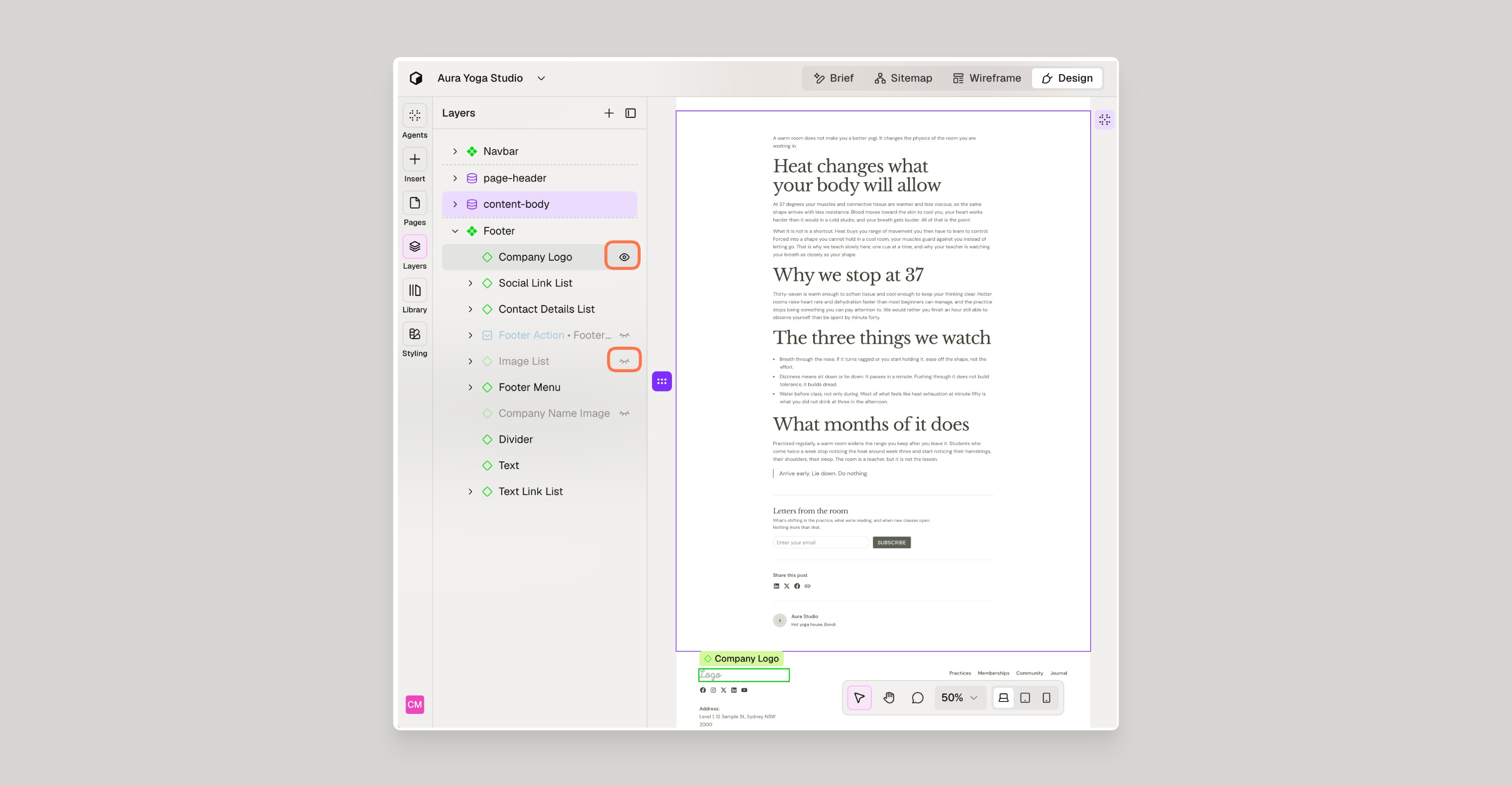
Hiding a layer hides it for every item.
Preview and Publish Design Changes
- Click Preview (play) in the top-right toolbar to check your pages, including on mobile.
- Click Publish in the top-right corner.
Content changes publish separately, from the CMS.
Was this helpful?
Need Support?
Join Our Community
Learn from fellow Lumers or showcase your work with our community of 10k+ members.
Get Support
We've got your back. Get your questions answered.
We typically reply in 24 hours or less.

