How to Set Up 301 Redirects
By the end of this doc, you'll be able to:
- Understand when you need a 301 redirect
- Add a redirect from an old URL to a new one
- Edit or remove a redirect
- Put your redirects live and check they work
Overview
A 301 redirect sends anyone who visits an old address to a new one automatically, and tells search engines the page has moved for good. Without one, old links in emails, social posts, bookmarks and search results lead to a "page not found" error, and the page can drop in search rankings. Set up redirects whenever you rename a page, change its address, remove it, or move a site to Relume from another platform.
Before You Begin
- A paid Launch plan on your site. Redirects aren't available on the Free plan.
- Editor, Admin or Owner access to the site.
- A list of the old addresses you want to redirect, and where each one should go.
When to Use a Redirect
- You changed a page's address, for example from
/servicesto/what-we-do. - You removed a page, and want visitors sent to the closest page that still exists.
- You moved your site to Relume from WordPress, Wix, Squarespace or another platform, and some addresses changed. Blog posts are the most common case, such as
/2024/03/my-postbecoming/blog/my-post. - You want a short address for a campaign, like
/offerpointing to a longer page address.
Add a Redirect
- Open your site in Relume.
- Click Site settings (the gear icon) in the header.
- Click Redirects.
- Add a new redirect.
- Enter the old path in the from field, for example
/old-page. - Enter where it should go in the to field, for example
/new-page. - Save the redirect.
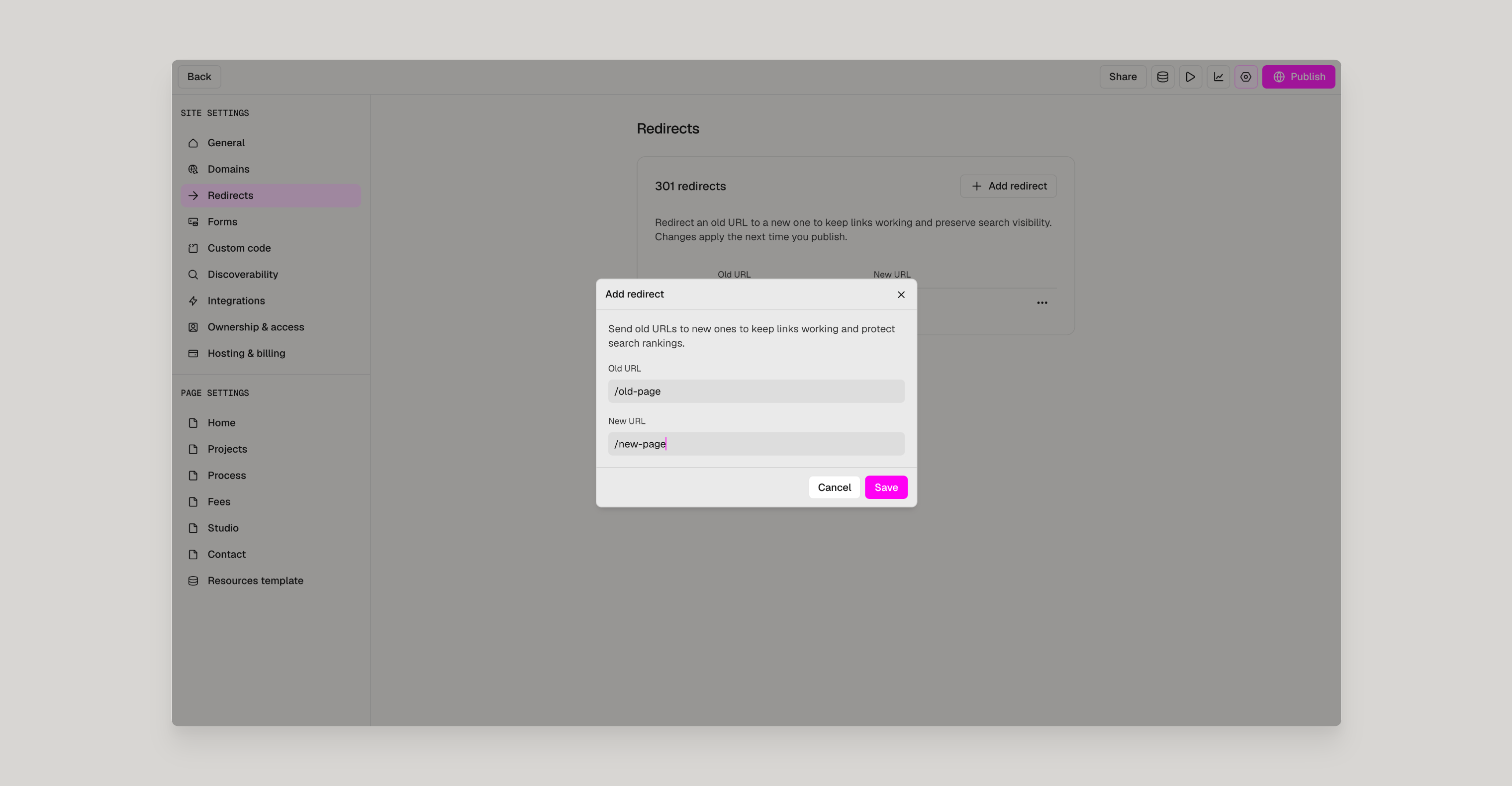
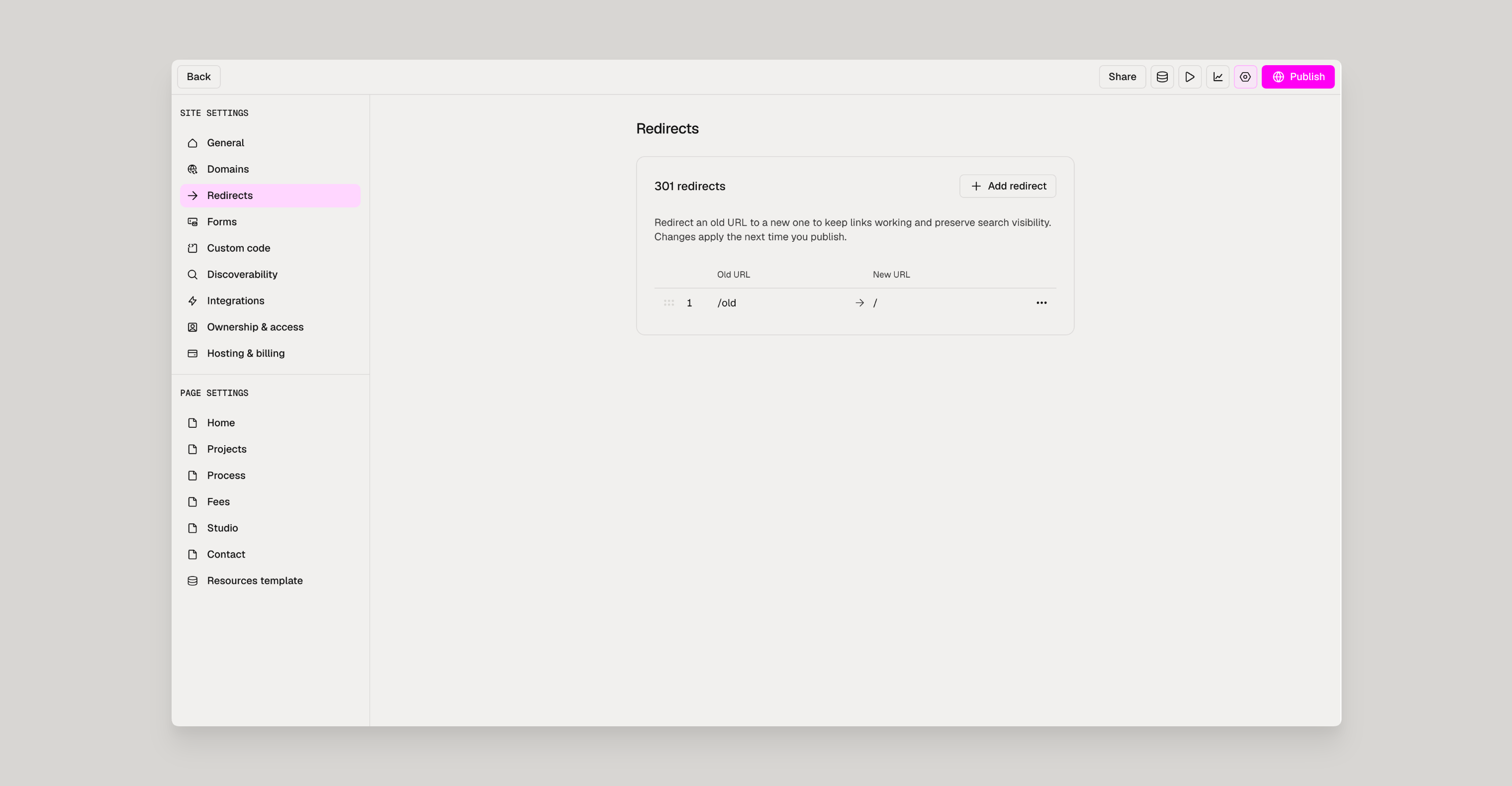
Repeat for each old address. The destination can be a page on your site, like /new-page, or a full address on another site, like https://example.com/page.
Put Your Redirects Live
Redirects only start working when you publish.
- Click Publish in the top-right corner.
- Follow the publish steps.
Once your site is live, open an old address in your browser. It should take you straight to the new page.
Edit or Remove a Redirect
- Go to Site settings > Redirects.
- Find the redirect in the list.
- Change its from or to path, or remove it.
- Publish your site to apply the change.
How Redirects Work
- Each redirect matches one exact path.
/blog/post-oneonly redirects that one address. Wildcards like/blog/*aren't supported yet, so add a redirect for each old URL. - A trailing slash makes a different path.
/aboutand/about/count as two addresses. Copy old addresses exactly as they appeared on your old site, and add both versions if visitors used both. - Redirects win over pages. If a redirect's from path matches a page that exists, visitors go to the redirect's destination instead.
- Query strings carry over. A visit to
/old-page?ref=emailarrives at/new-page?ref=email, so campaign tracking keeps working. - Each site can have up to 500 redirects.
Note: Each old path can only have one redirect. If you try to add a second redirect from the same path, edit the existing one instead.
Tips & Best Practices
Tip: Moving from another platform? Save a list of every page address before you switch, such as your old site's sitemap.xml. It's much easier to match old addresses to new ones while the old site is still live.Tip: Redirect to the closest matching page, not your homepage. Search engines treat redirects to unrelated pages as broken links.
Tip: Avoid chains, where one redirect points to an address that redirects again. Point every old address straight to its final page.
Need Support?
Join Our Community
Learn from fellow Lumers or showcase your work with our community of 10k+ members.
Get Support
We've got your back. Get your questions answered.
We typically reply in 24 hours or less.

