How To Make Edits Using Relume AI
By the end of this doc, you'll be able to:
- Understand how the Relume AI chat panel lets you edit your site using prompts
- Open the chat panel and submit a prompt describing a change
- Review an AI-made edit directly in the builder
- Accept an edit, or send a follow-up prompt to refine or undo it
- Write scoped prompts that get you more accurate results
How to Edit Your Site with the Relume AI Chat Panel
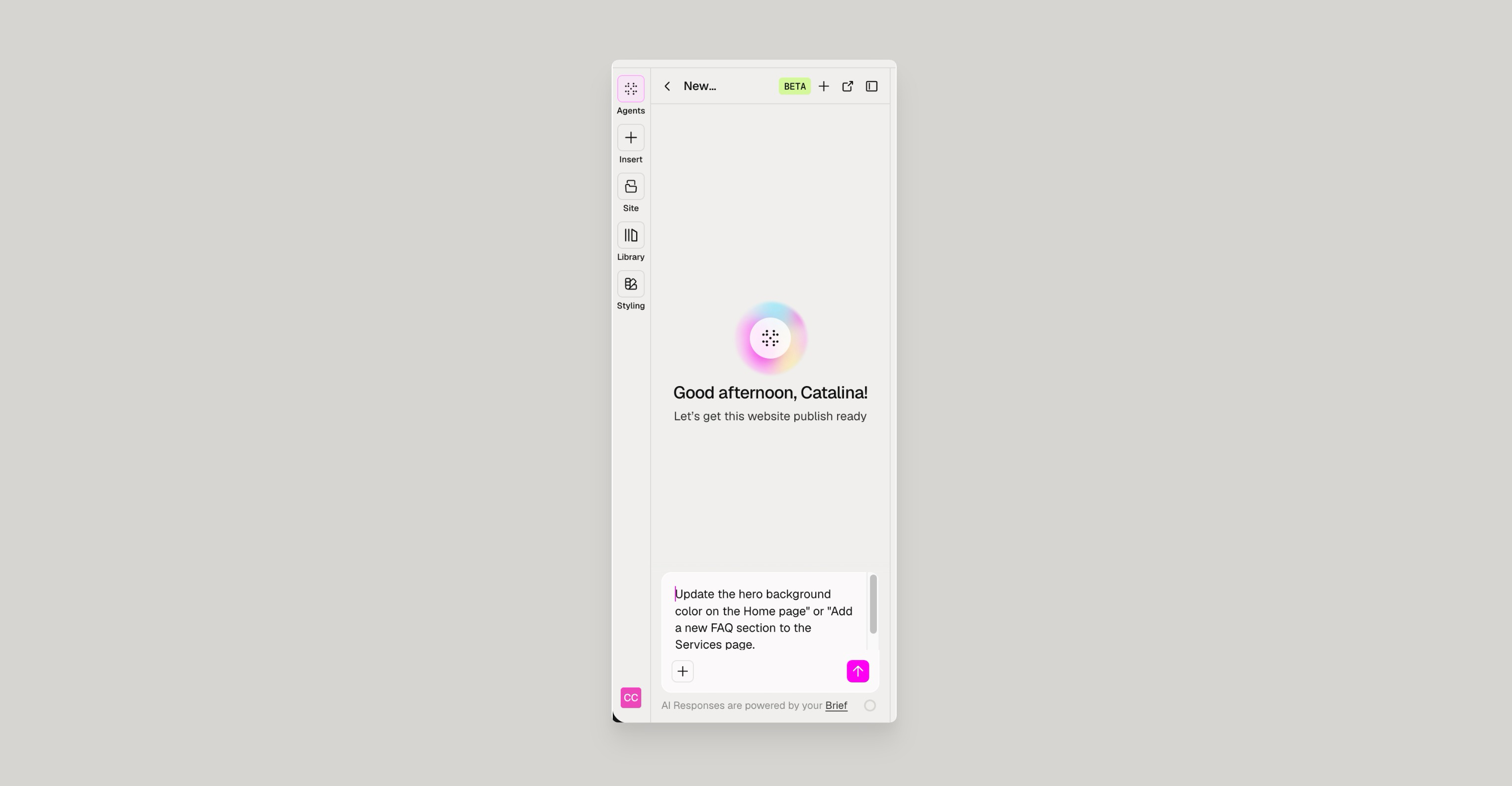
- Open the Relume AI chat panel in the builder.
- Type a prompt describing the change you want.
- Submit your prompt - Edits are applied directly to the relevant part of your site.
- Review the result in the builder.
- Click Accept if it looks correct, or send a follow-up prompt to refine or undo the edit.
Use specific, scoped prompts — page-level, section-level, or component-level — rather than broad ones. A scoped prompt like "shorten the copy in the pricing section" gives Relume AI a clearer target than "make the pricing page better."
Was this helpful?
Need Support?
Join Our Community
Learn from fellow Lumers or showcase your work with our community of 10k+ members.
Get Support
We've got your back. Get your questions answered.
We typically reply in 24 hours or less.

