How to Edit Your Site on Your Phone
By the end of this doc, you'll be able to:
- Open and edit your Relume site from your phone
- Make changes by asking Relume AI
- Edit text, images and icons directly on the page
- Add a page and preview your site at mobile size
- Know which edits to save for your computer
Overview
You don't need to be at your desk to update your site. Relume's editor works in your phone's browser, so you can fix a typo, swap an image or add a page wherever you are. On a phone, the editor is built around Relume AI: describe the change you want, and AI makes it for you.
Before You Begin
- A Relume site you have Editor, Admin or Owner access to.
- A phone with an up-to-date web browser, signed in to your Relume account.
Find Your Way Around
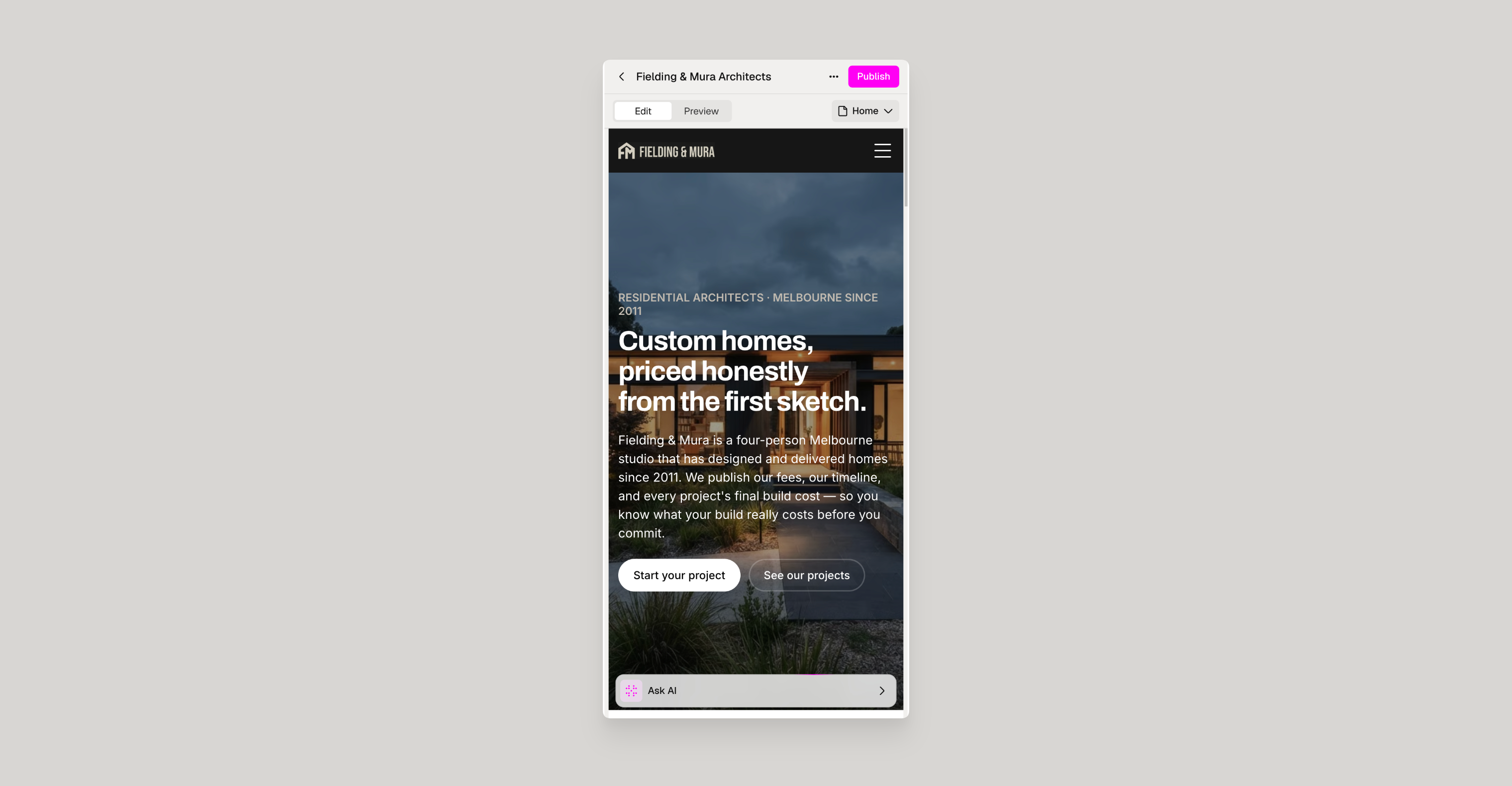
The mobile editor opens in the AI chat, ready for you to ask for a change. The sidebar you see on a computer becomes a tab bar along the bottom of the screen, which you use to move between chat, your page and your other pages.
Your page has two modes:
- Edit: tap anything on the page to change it, or ask AI to change it.
- Preview: see the page as visitors will on a phone, without any editing controls.
Make Changes with Relume AI
- Open your site in your phone's browser.
- Type the change you want in the chat, for example
Shorten the homepage headline and make it more direct. - Send your message.
- Switch to Preview to check the result.
To pick up an earlier conversation, or start a fresh one for a new task, open your list of chats from the chat screen.
Tip: Be specific about which page and section you mean. "Change the button in the pricing section to Book a call" gets a better result than "change the button".
Edit the Page Directly
- Switch to Edit.
- Tap the text, image or icon you want to change.
- Make your change. Type over text, choose a new image, or pick a new icon from the icon picker.
To have AI change just the element you've selected, tap Ask AI and describe what you want.

Add a Page
- Open the page picker.
- Choose to create a page with AI.
- Describe the page you need, for example
An FAQ page about our delivery and returns.
Relume AI builds the page using your site's design, ready for you to review.
Save Some Edits for Your Computer
The mobile editor focuses on the changes you're most likely to make on the go. A few settings, such as form fields and carousel arrows, can only be changed on a computer, and the editor shows a note when you tap one. Zoom, and the desktop and tablet views, are only available on a computer too.
Tips & Best Practices
Tip: Use Preview after every change. It shows your page at phone size, which is how most of your visitors will see it.
Tip: Save bigger layout changes, like rearranging sections or changing your style guide, for your computer, where you can see the whole page at once.
Need Support?
Join Our Community
Learn from fellow Lumers or showcase your work with our community of 10k+ members.
Get Support
We've got your back. Get your questions answered.
We typically reply in 24 hours or less.

