How to Customise Your Site with Custom Code and Code Embeds
By the end of this doc, you'll be able to:
- Choose the right place for a piece of custom code
- Add code to every page through your site's
<head>or<body> - Add a Code Embed section to show a third-party tool on a page
- Avoid the mistakes that stop custom code working
Overview
Relume builds most of what a website needs, but sometimes you'll want a tool it doesn't include, like a Tally form, a Calendly booking calendar, a chat widget or a cookie banner. Custom code lets you add these without waiting for Relume to support them. There are two places to put it: site-wide code that runs on every page behind the scenes, and Code Embed sections that show a tool inside a page.
Before You Begin
- A paid Launch plan on your site. Custom code isn't available on the Free plan.
- Editor, Admin or Owner access to the site.
- The code from the tool you want to add. Most tools have a Share, Embed or Install option that gives you a snippet to copy.
Choose Where Your Code Goes
- Site-wide code (
<head>or<body>): for code that runs on every page but isn't part of the page content. For example, analytics and tracking scripts, site verification tags, chat bubbles, cookie banners, custom fonts and small CSS tweaks. - Code Embed section: for something visitors see and use in the page itself. For example, a form, booking calendar, map, podcast player or events listing.
Tip: Look at what the tool gives you. If its instructions say "paste this in your site's head" or "before the closing body tag", use site-wide code. If they say "paste this where you want it to appear", use a Code Embed section.
Add Code to Every Page
Your site's <head> is the part of each page that browsers read first. Visitors never see it, so it's the place for tags and scripts that set things up. The <body> holds the visible page, and code at the end of it loads after your content.
- Click Site settings (the gear icon) in the header.
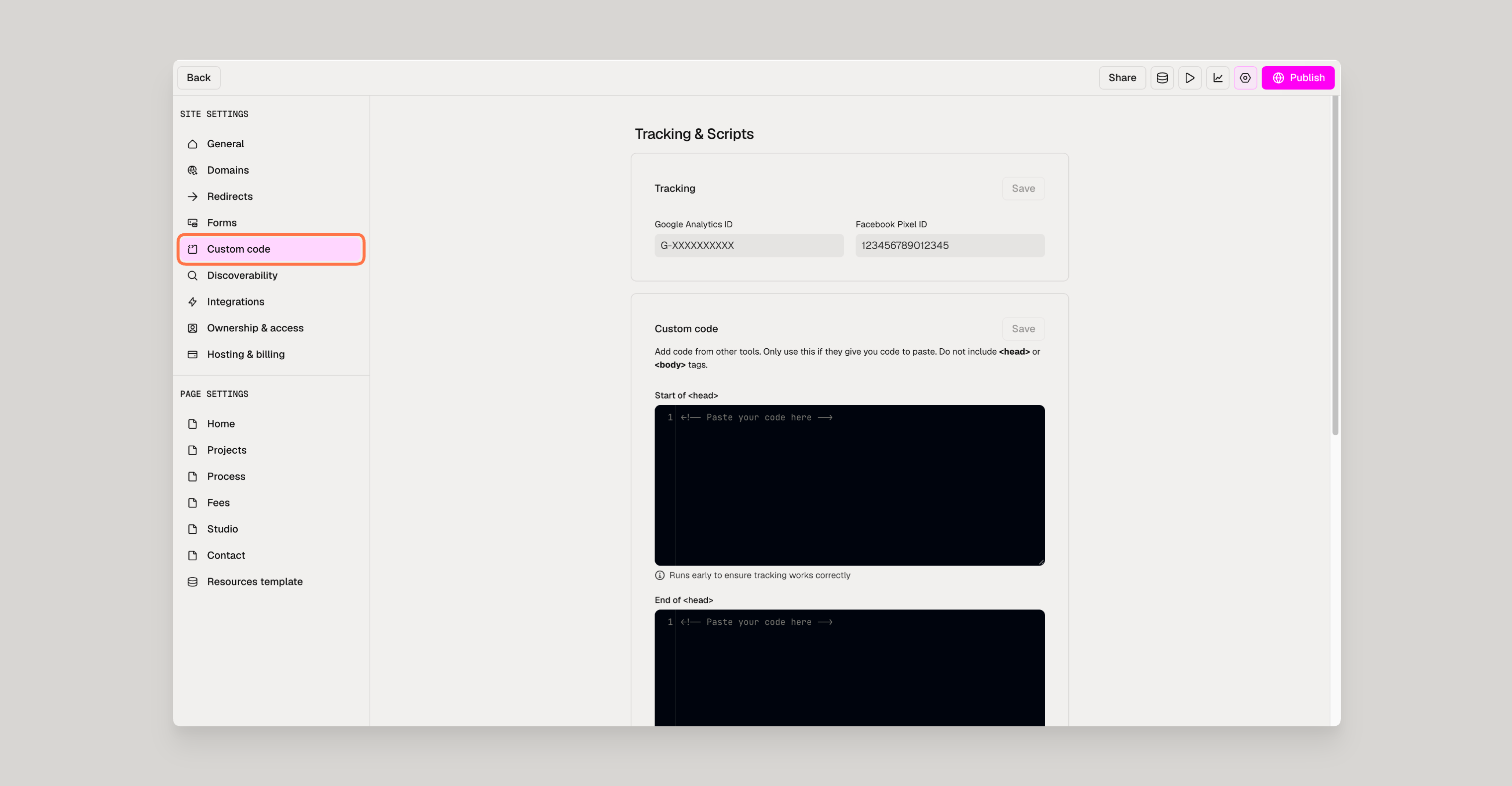
- Click Tracking & Scripts.
- Scroll down to Custom code.
- Paste your code into the field the tool asks for: Start of
<head>, End of<head>, Start of<body>or End of<body>. - Click Save.
- Publish your site to put the code live.
What You Can Do with Head Code
- Verify your site with Google Search Console, Pinterest or another service, using the
<meta>tag they give you. - Add tracking tools that Relume doesn't have a field for, such as Hotjar, LinkedIn Insight or TikTok Pixel. For Google Analytics and Facebook Pixel, use the ID fields in the same tab instead.
- Load a custom font with the
<link>tag from a font service. - Tweak styles with a short
<style>block, for example<style>.my-class { letter-spacing: 0.02em; }</style>.
What You Can Do with Body Code
- Add a chat widget, such as Intercom, Crisp or Tidio.
- Show a cookie banner from a consent tool.
- Add a pop-up or announcement tool that floats over every page.
Warning: Paste only the code the tool gives you. Don't add your own<head>or<body>tags. Relume adds those already, and including them again can break your site.
Add a Code Embed Section
A Code Embed section puts a third-party tool inside a page, so it follows your site's spacing and width and fits in with the sections around it.
- Open the page in the Design tab.
- Click Insert in the left sidebar.
- Choose the Code Embed category.
- Click the section layout you want to add to your page.
- Select the embed in the section.
- Paste your embed code into the right panel.
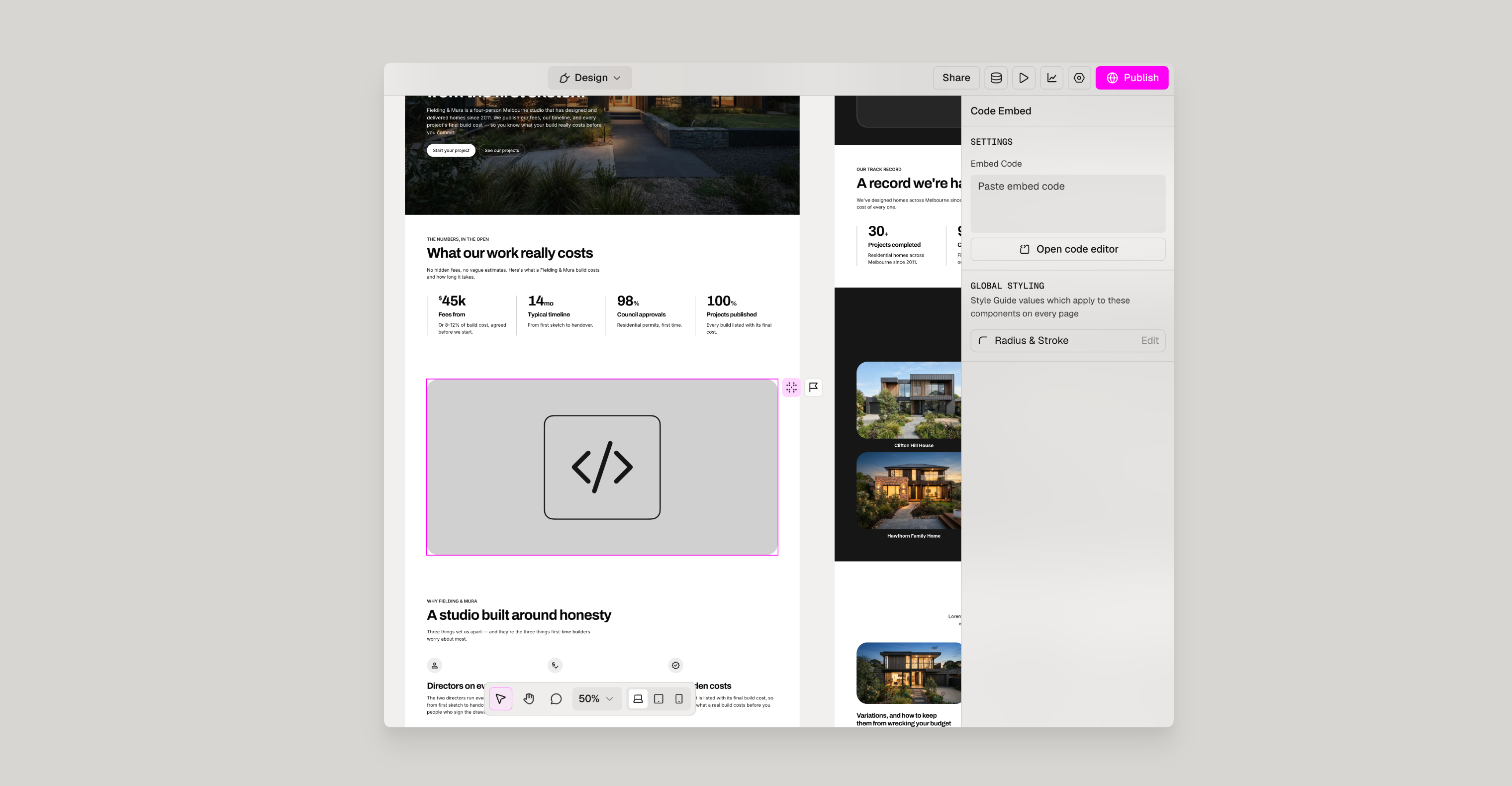
Click the Preview (play) button in the top-right toolbar to check the embed, then publish your site.
Note: Relume AI doesn't add Code Embed sections on its own. Add them yourself wherever you want a tool to appear.
Good Things to Embed
- Forms from Tally, Typeform, HubSpot or Jotform
- Booking calendars from Calendly, Cal.com or Acuity
- Maps from Google Maps or Mapbox
- Audio and video players for podcasts or sermons
- Events listings and donation forms from tools like Planning Center
Tips & Best Practices
Tip: Use Relume's own forms where you can. Submissions arrive in Relume, and the form matches your design. Use an embed when you need a tool's specific features.
Tip: Some scripts only run on your published site, not in the editor. If something doesn't appear while you're editing, publish and check your live site.
Tip: Keep CSS tweaks small. Change colours, fonts and spacing in your style guide instead, so Relume AI and future edits keep your design consistent.
Tip: Only add code from tools you trust. Custom code runs on your live site for every visitor.
Need Support?
Join Our Community
Learn from fellow Lumers or showcase your work with our community of 10k+ members.
Get Support
We've got your back. Get your questions answered.
We typically reply in 24 hours or less.

