How To Create and Edit Wireframes For Your Relume Site
By the end of this doc, you'll be able to:
- Create wireframes from your sitemap sections
- Add new pages with AI prompts or by hand
- Edit copy, layouts, and elements without starting over
- Reuse sections across pages with Global Sections
- Preview your wireframes on different devices and share them for feedback
How Your Sitemap and Wireframes Work Together
Your sitemap and wireframes are two views of the same project. Each section in your sitemap has a title and description. Relume's AI reads these as a prompt to decide which wireframe component fits best. The clearer your section descriptions, the better the components the AI picks.
Your sitemap and wireframes are linked. Deleting a section in one also deletes it in the other.
How to Create Your Wireframes
Define Your Sections
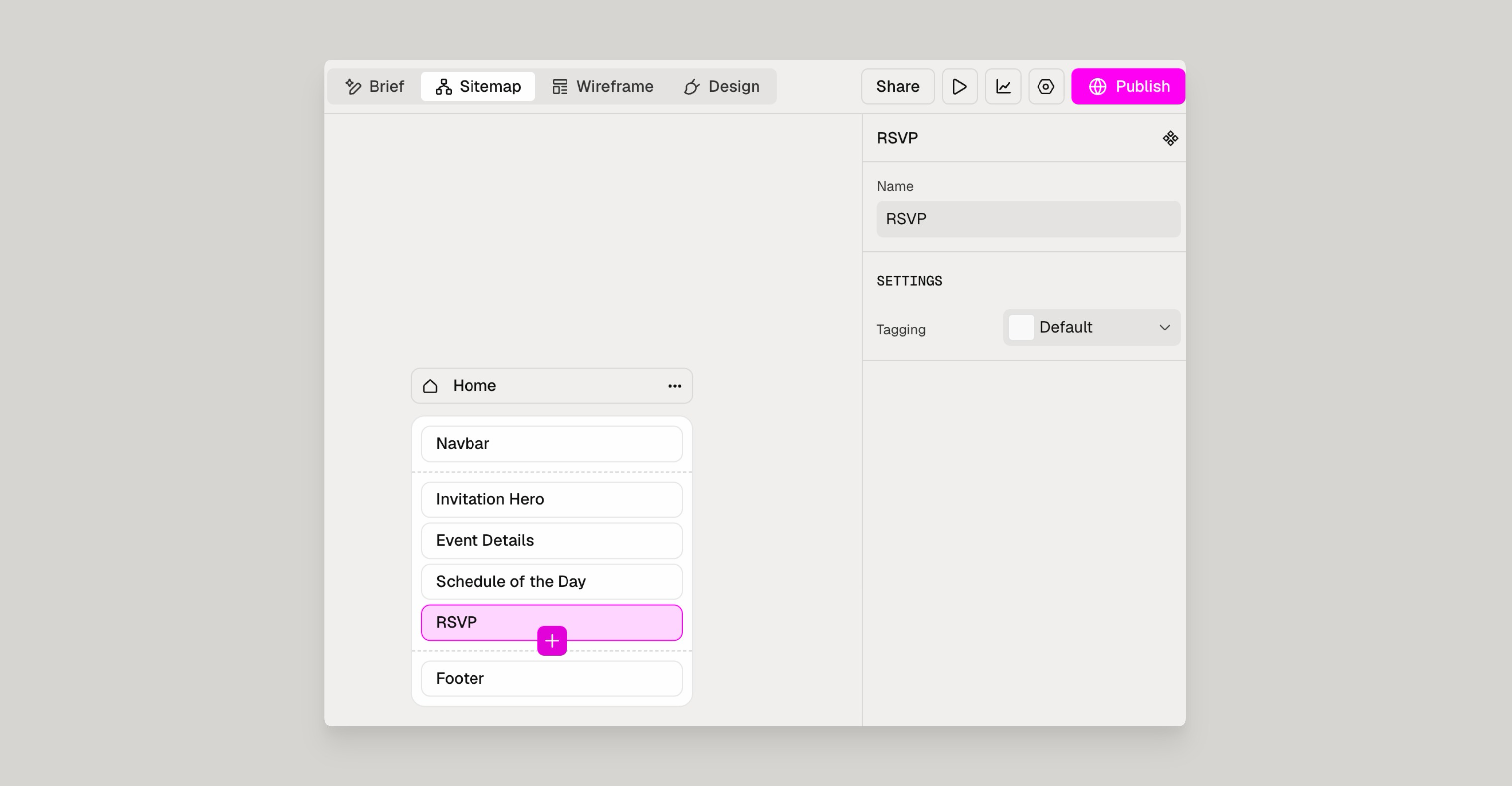
- Go to the Sitemap tab.
- Click a section to edit it.
- Enter a clear title for the section.
Add a Page
You can add pages from either the Sitemap tab or the Wireframe tab.
- Hover between two pages, or scroll to the end of your page list.
- Click the + button.
Build Out a New Page
Choose one of these two ways to fill your new page with sections.
Generate it with AI:
- Enter a page-level prompt that describes what the page is for.
- Confirm the prompt to generate the page's sections.
Build it manually:
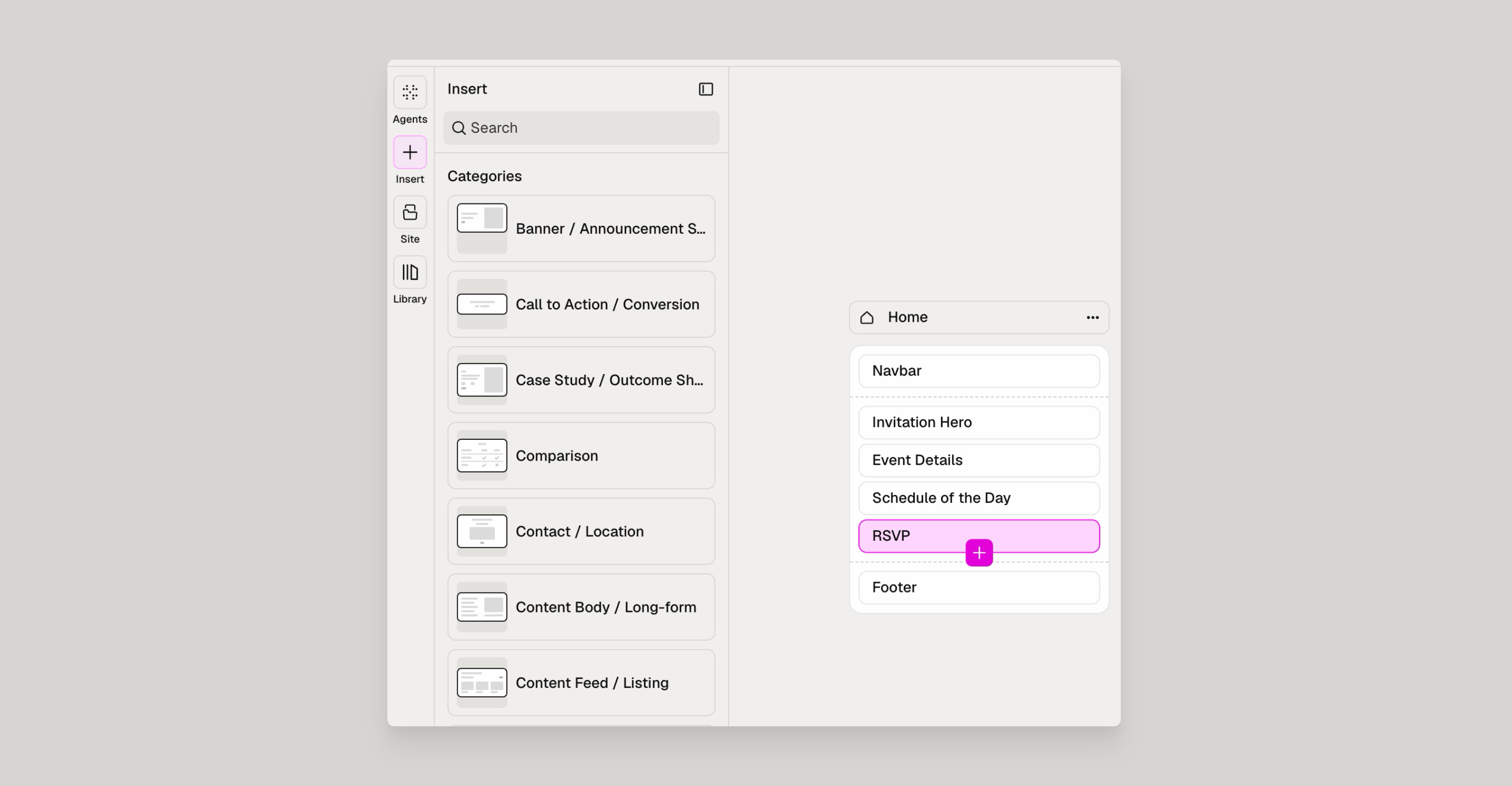
- Open the Insert panel.
- Select the components you want to add to the page.
How to Edit Your Wireframes
Change Copy
- Click any text on the wireframe.
- Type your changes directly.
To have AI rewrite it instead:
- Select the text or section you want to change.
- Open the Agent panel.
- Choose your AI assistant: Relume AI, Strategist, Designer, Copywriter, or Analyst.
- Describe how you'd like the copy revised.
Change a Layout
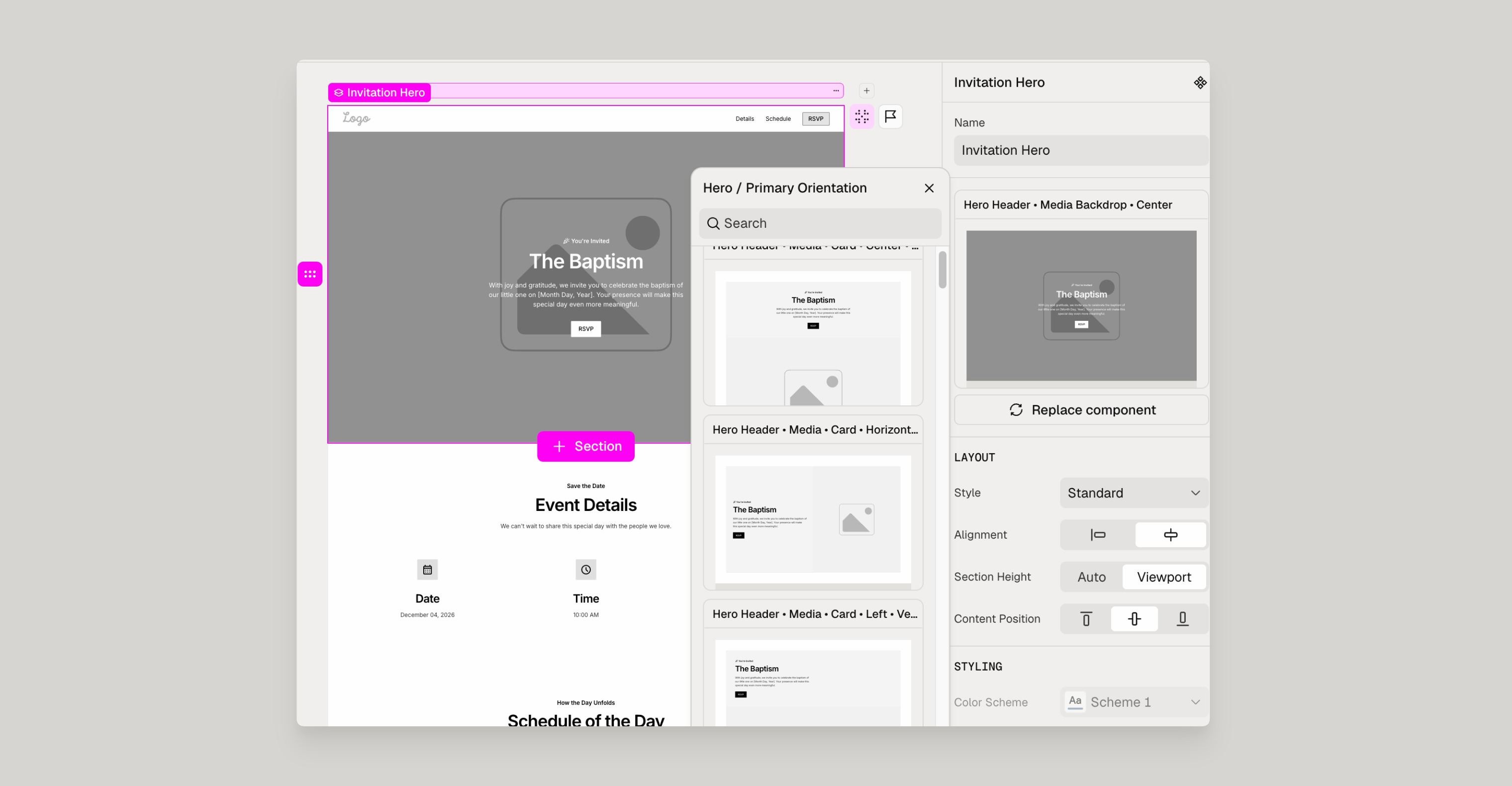
Each component comes in several variants, which are alternative layouts of the same component type.
- Select a component.
- Choose a variant in the Edit panel.
To replace the whole component while keeping its copy:
- Click the component's name.
- Choose a different component from the list.
Remove an Element
- Select the element.
- Press Delete on your keyboard, or right-click and choose Delete.
Some elements are essential to a component. Relume keeps these in place, because removing them would break the layout.
Reorder or Add List Items
- Hover over a list item, such as a feature card or FAQ entry.
- Drag the item to its new position.
To add a new item, hover over an existing item and add one beside it.
Reset a Component
- Right-click the component.
- Select Reset Component.
- Choose what to reset: everything, elements only, or copy only.
Choose elements only to restore the original layout while keeping your edited copy.
How to Reuse and Review Your Wireframes
Create a Global Section
A global section is a section you reuse across pages, such as a navbar, footer, or call-to-action. Using one keeps your components and copy consistent everywhere it appears.
- Right-click the section.
- Select Create global section.
- Copy the section.
- Go to another page.
- Paste the section where you want it.
Preview on Different Devices
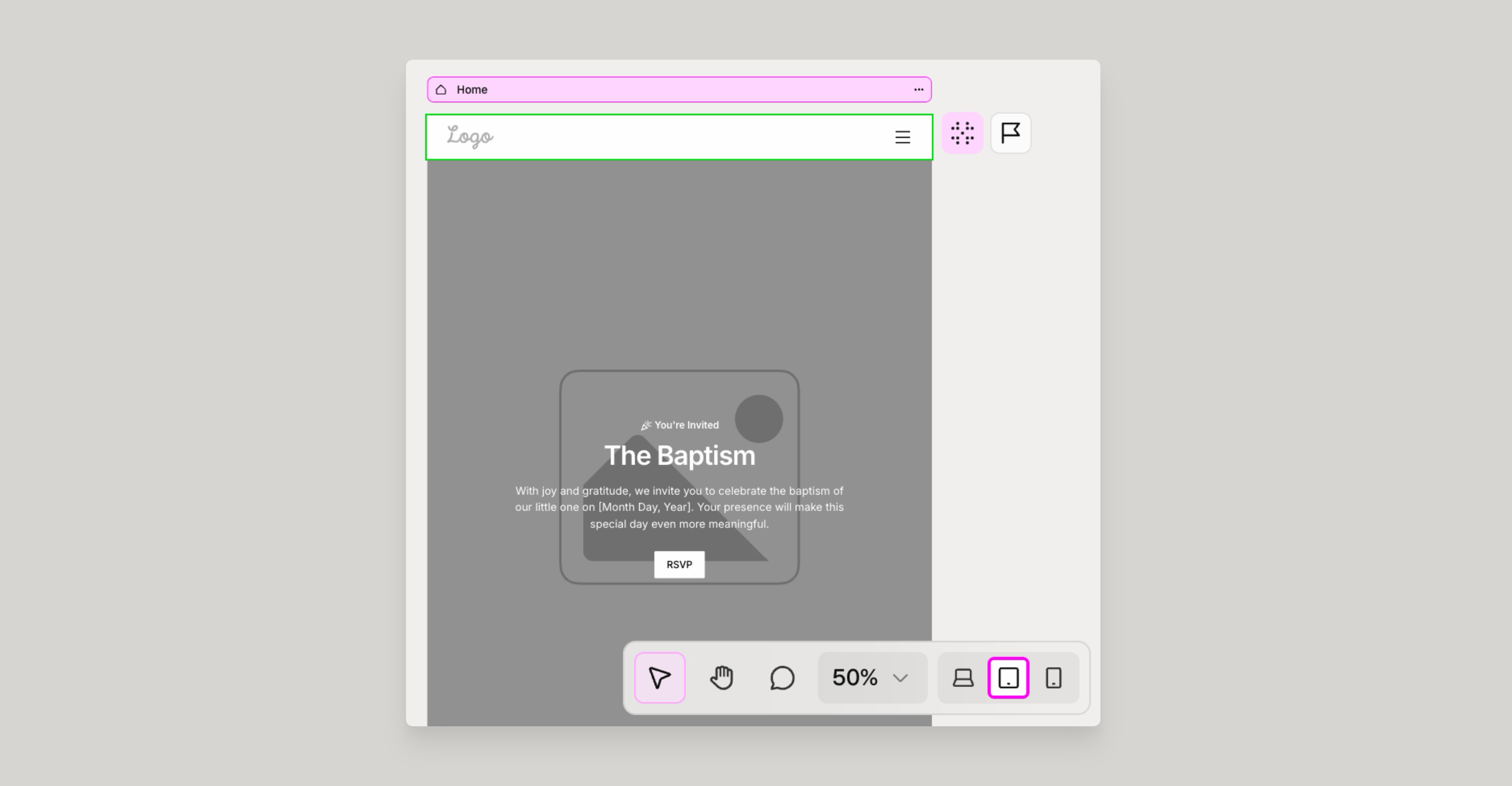
- Find the device controls in the bottom-right corner.
- Click a device to switch to that view.
Share for Client Feedback
- Click Share.
- Choose the permissions for the link.
- Click to copy the link.
- Send the link to your client.
To leave or review comments, press C to enter comment mode. Press Esc to exit.
Need Support?
Join Our Community
Learn from fellow Lumers or showcase your work with our community of 10k+ members.
Get Support
We've got your back. Get your questions answered.
We typically reply in 24 hours or less.

