Get started with Relume Studio
By the end of this doc, you'll be able to:
- Understand what Relume Studio does and why it keeps your images consistent
- Explain how Styles, Characters and Scenes work together
- Open Studio from your Relume account
- Find your way around the Studio sidebar
- Find your Studio images when you're building in Publish
Before You Begin
- A Relume Publish Workspace plan on any Pro tier. Studio is already included in these plans.
What Is Relume Studio?
Relume Studio generates on-brand images with the same look, the same people and the same places every time. Most AI image tools drift: by the fifth image, the face has changed and the room has moved. Studio locks these things in once, so every new image goes back to the original source rather than the last image it made.
Studio is built on three building blocks:
- Styles lock the look. A Style captures things like how close the camera sits, whether people look at the lens, and the overall tone. Create your own from up to 3 reference images, or use a Style someone else has shared.
- Characters lock the people. Upload up to 3 photos of a person, and Studio builds a full character profile with different angles and expressions. That person then looks the same in every image.
- Scenes lock the place. Upload a photo of a real space, like your café, office or gym. Studio creates four views of it and keeps everything where it actually sits.
You bring them together in the composer, the box where you describe the image you want. Pick a Style, one or more Characters and a Scene, describe the image, and Studio generates it using all three.
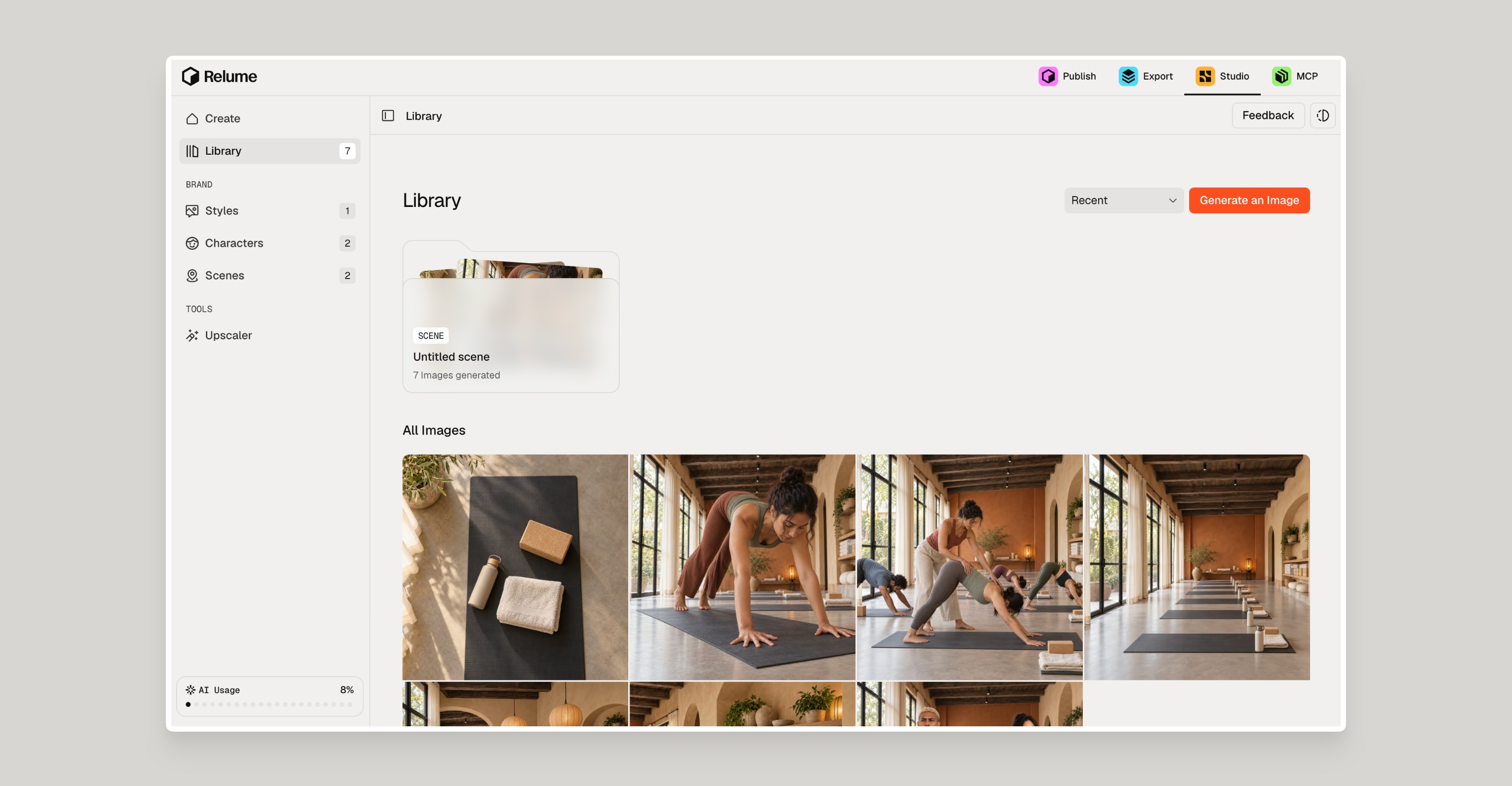
Every image you create is saved to your Studio library. It also appears in the library inside Relume Publish, ready to drop into your site.
Find Your Way Around Studio
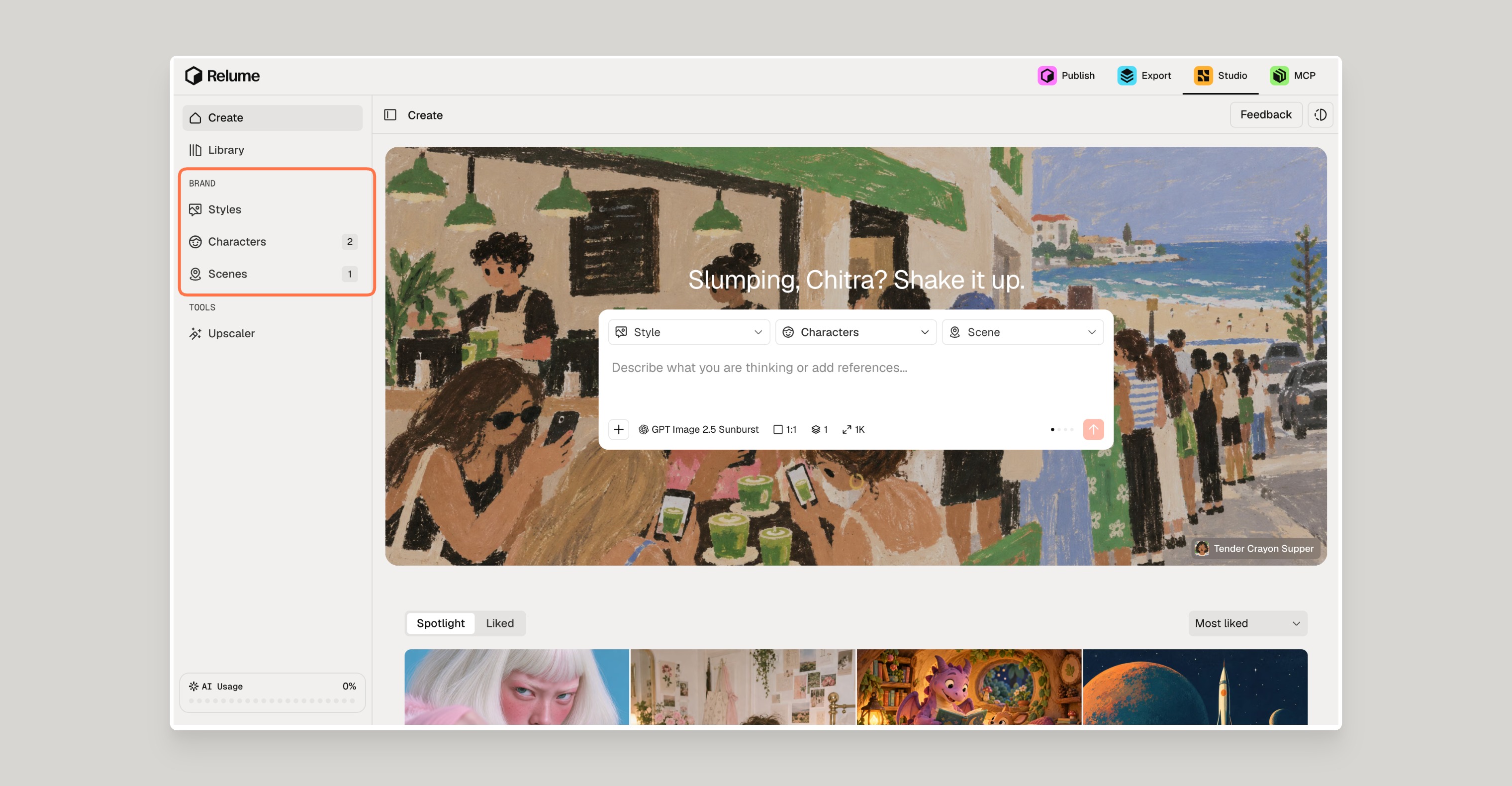
The left sidebar holds everything you need to build your brand's imagery.
- Create opens the composer, where you generate new images.
- Library holds every image you've generated in Studio.
- Styles is where you create your own Styles and browse Styles others have shared in Explore.
- Characters is where you create and manage your character profiles.
- Scenes is where you create and manage your Scenes.
Find Studio Images in Publish
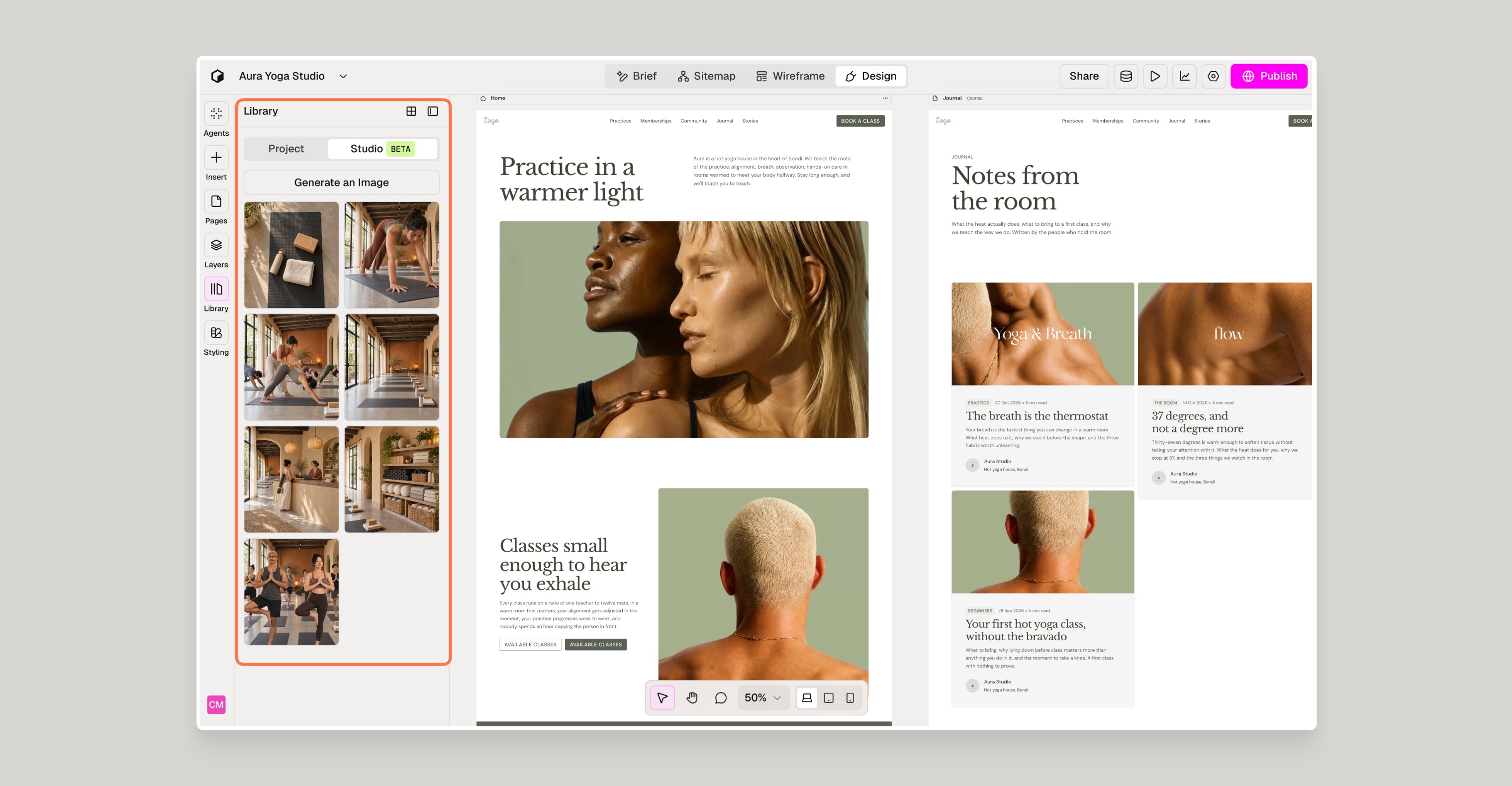
The images you generate in Studio appear in your Publish project's library, under the Studio tab. You can also find them when you replace an image on your page, in the Studio filter of the Add from Library window.
When you create a Style, treat your reference images as inspiration, not a blueprint. Blending a few references keeps your Style original and fair to the artists behind them.
For Characters, a clear photo of the face and a full-body shot give the best result. Studio fills in anything it can't see, so the more you give it, the more accurate the profile.
Need Support?
Join Our Community
Learn from fellow Lumers or showcase your work with our community of 10k+ members.
Get Support
We've got your back. Get your questions answered.
We typically reply in 24 hours or less.

