Get Started with Relume CMS
By the end of this doc, you'll be able to:
- Understand what Relume CMS is
- Understand how collections, items, fields and template pages work together
- Find your way around the CMS
- Check where your content appears
- See which features are on the way
What Is Relume CMS?
A CMS (content management system) lets you add and update website content, such as blog posts, case studies or portfolio projects, without writing code. You store your content in one place, and Relume displays it using your site's design.
Content and design stay linked. A new blog post appears on your blog page in the same layout as your other posts, and gets its own page. Change your blog section's layout and every post moves into the new design.
You can write content yourself, import it from your existing site, let AI write it from your brief, or add it from your own AI tool with the Relume MCP.
Key terms: Your blog is a collection and each post is an item. Each item is made up of fields, such as its title, image and author. Every post's page uses the same layout, called the template page.
Find Your Way Around the CMS
Open the CMS
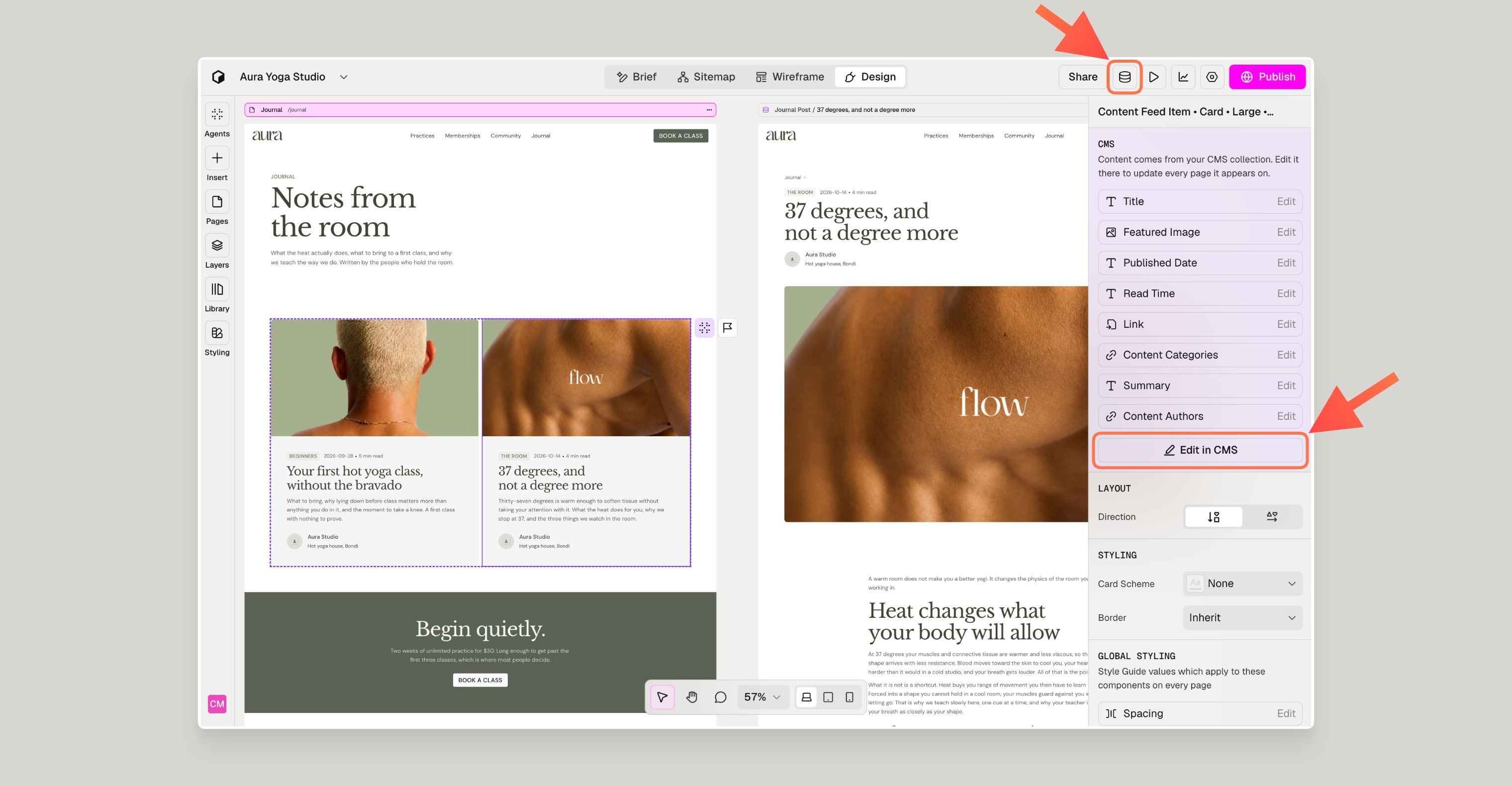
- Click the CMS icon in the top-right toolbar, next to Share.
- Or select a CMS section on the canvas (any section showing content from a collection, such as a blog list) and click Edit in CMS in the right panel.
What You'll See
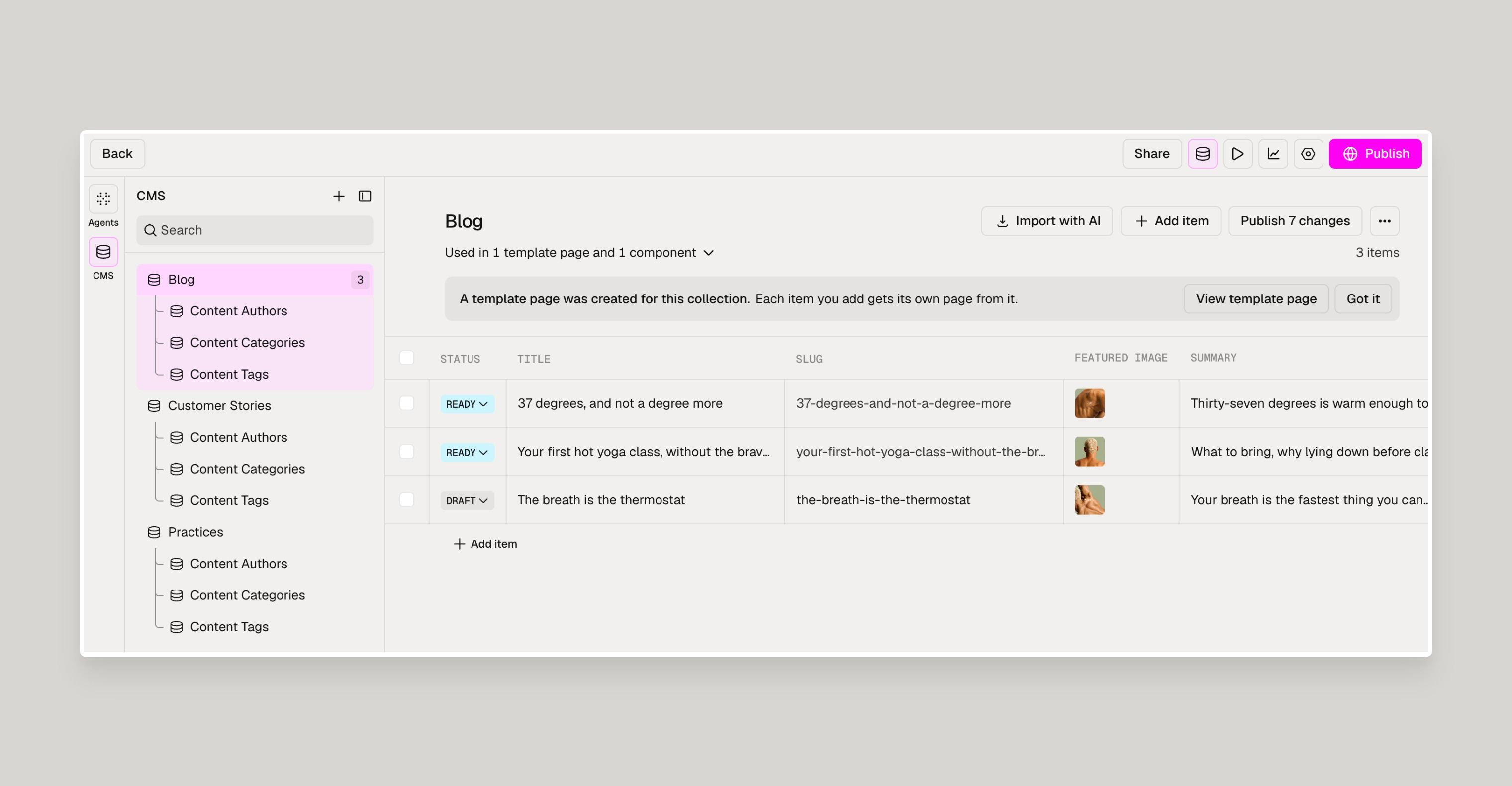
- Collections panel (left) — your collections, with their sub-collections, such as authors, categories or tags, underneath
- Item grid (centre) — every item in the selected collection, with its status (Published, Ready or Draft), title, slug (the end of its web address) and other fields
- Toolbar (top) — buttons to import with AI, add an item and publish
The line under the collection name, such as "Used in 1 template page and 1 component", shows where its content appears. Click it to go to those pages.
See Where Your Content Appears
Check this before changing a collection, so you know which pages are affected.
- Sitemap: Sections with CMS content show the CMS icon. Click it to see the collection.
.jpeg)
- Layers panel: On the Design tab, CMS layers are coloured and show the CMS icon.
.jpeg)
What You Can Do with Relume CMS
- Create a collection and show it on a page
- Add and publish your content
- Design your CMS pages and layouts
What's Coming
- Turning an existing page into a CMS page - For now, ask the agent to create a collection and template page based on your existing page.
- Adding, deleting or renaming fields - Fields are currently fixed by collection type.
- More options for hiding fields - For now, hide layers in the Layers panel.
- Exporting CMS content.
Need Support?
Join Our Community
Learn from fellow Lumers or showcase your work with our community of 10k+ members.
Get Support
We've got your back. Get your questions answered.
We typically reply in 24 hours or less.

