Adding Tracking & Scripts for Your Published Site
By the end of this doc, you'll be able to:
- Understand what Tracking & Scripts controls on your published site.
- Add your Google Analytics ID to track site visitors.
- Add your Facebook Pixel ID to track ad performance.
- Add custom code to your site's < head > or < body >, and choose the right field for it.
- Know what to avoid when pasting custom code.
Before You Begin
- Editor access or above on your project.
- A plan that includes Tracking & Scripts.
What is Tracking & Scripts
Tracking & Scripts lets you connect analytics tools and add custom code to your published site, all from Site Settings, with no code required for the analytics part.
Most sites need to track visitors and integrate with tools beyond what Relume natively supports. Tracking & Scripts covers both: add your Google Analytics and Facebook Pixel IDs to start collecting visitor data, or paste in code from other tools directly into your site's < head > or < body >.
How to Add Your Tracking IDs
Add your Google Analytics and Facebook Pixel IDs to start sending visitor data to those tools once your site is published.
- Go to Site Settings, then open the Custom Code tab.
- Under Tracking, enter your GA4 measurement ID in the Google Analytics ID field.
- Enter your pixel ID in the Facebook Pixel ID field.
- Click Save.
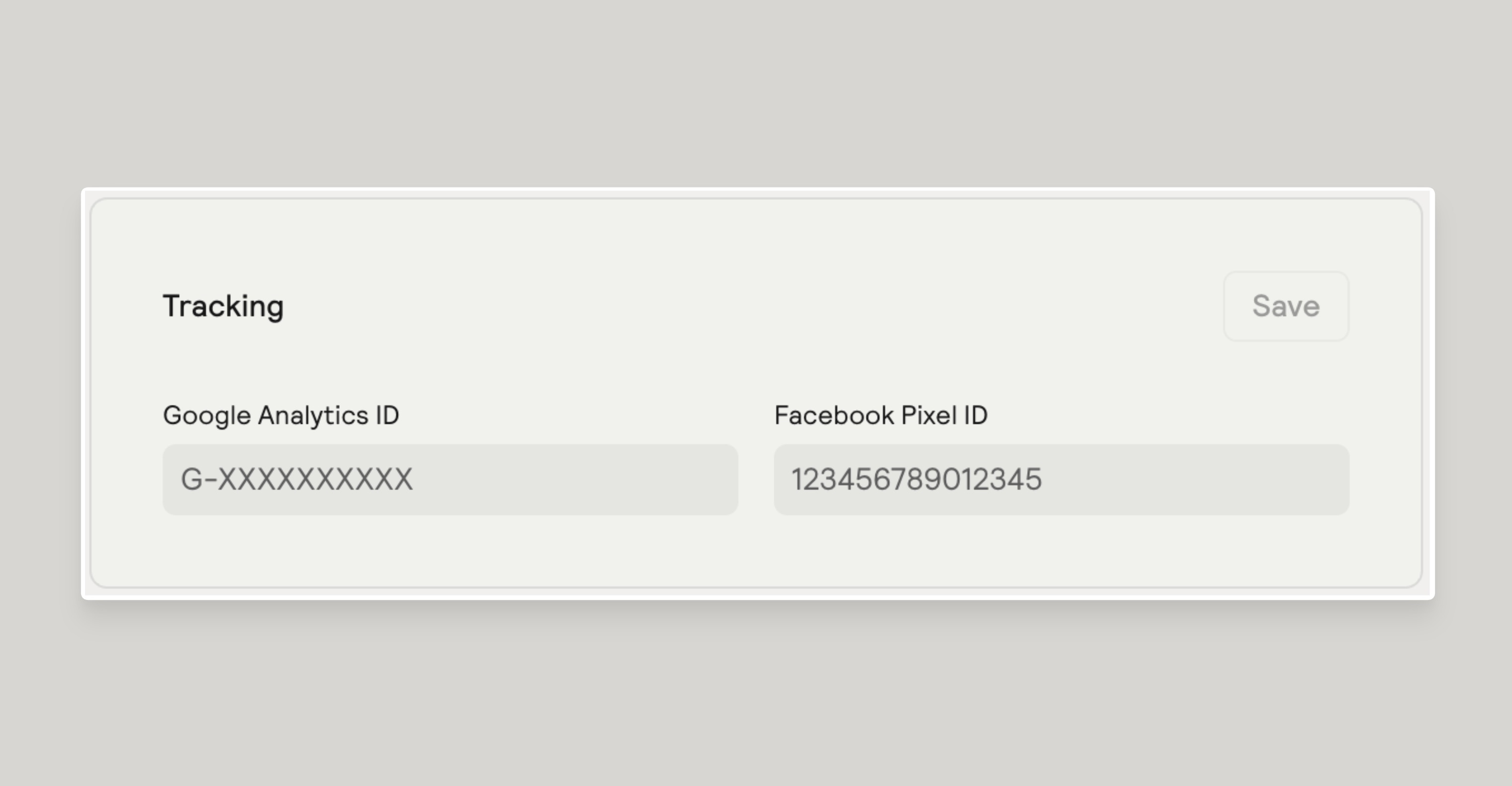
You don't need to fill in both fields. If you only use one of these tools, leave the other blank.
How to Add Custom Code
Custom code lets you paste in scripts from other tools, like a chat widget, a verification tag, or a tool that isn't natively supported, directly into your site.
- Go to Site Settings > Tracking & Scripts, and scroll to Custom code.
- Paste your code into the matching field: Start of < head >, End of < head >, Start of < body >, or End of < body >. If the tool doesn't say which, see Which Field to Use below.
- Click Save.

Only paste code if a tool has explicitly given it to you. Don't include the < head > or < body > tags themselves — Relume adds those automatically, so including them again will break your site.
Which Field to Use
Where you paste a script decides when it loads. That affects how fast your pages appear, and whether a script catches every visitor. If the tool's instructions name a place, follow them. If they don't, use the guide below.
Start of < head >
Code here loads before anything else on the page. Use it for scripts that need to run first:
- Tracking tools that don't have their own field, such as Google Tag Manager, Hotjar, LinkedIn Insight or TikTok Pixel. For Google Analytics and Facebook Pixel, use the ID fields above instead.
- Cookie banners from a consent tool, so they can hold back tracking until a visitor agrees.
- A/B testing tools, so visitors don't see the original page flash before the test version.
Tracking goes first so it records visitors who leave before the page finishes loading.
End of < head >
Code here loads after your site's own styles and settings. Use it for:
- Verifying your site with Google Search Console, Pinterest or another service, using the meta tag they give you.
- Loading a custom font with the link tag from a font service.
- Tweaking styles with a short style block. Code that loads later wins, so your tweaks override the defaults.
Start of < body >
Code here sits just before your page content. A few tools ask for a second snippet here. Google Tag Manager, for example, gives you a backup snippet that keeps tracking working for visitors who have JavaScript turned off.
End of < body >
Code here loads after your page content, so it never delays what visitors see. Use it for:
- Chat widgets, such as Intercom, Crisp or Tidio.
- Pop-ups and announcement tools that float over every page.
- Scripts that change elements already on the page.
Note: Your page waits for every script in the < head > before it appears. Put code in the < head > only when it needs to run first, and everything else at the end of the < body >.
Need Support?
Join Our Community
Learn from fellow Lumers or showcase your work with our community of 10k+ members.
Get Support
We've got your back. Get your questions answered.
We typically reply in 24 hours or less.

